
Is your whole site blocked, or only a few addresses?
Quick answer
Blocked by robots.txt means a small file on your site, robots.txt, asked Google not to visit the addresses listed, so Google did not read or add them. On Shopify the list is usually checkout, cart link, order, account, admin and filtered collection addresses. On Squarespace it is usually the admin sign-in, customer accounts, site search and blog filter addresses. Both platforms block those on purpose: leave them. On Wix, WordPress and GoDaddy the default file blocks almost nothing customers see, apart from WooCommerce's add-to-cart links and store files on WordPress stores, so a listed page there deserves a closer look. It needs a fix only when your homepage, a service page or a product page is on the list.
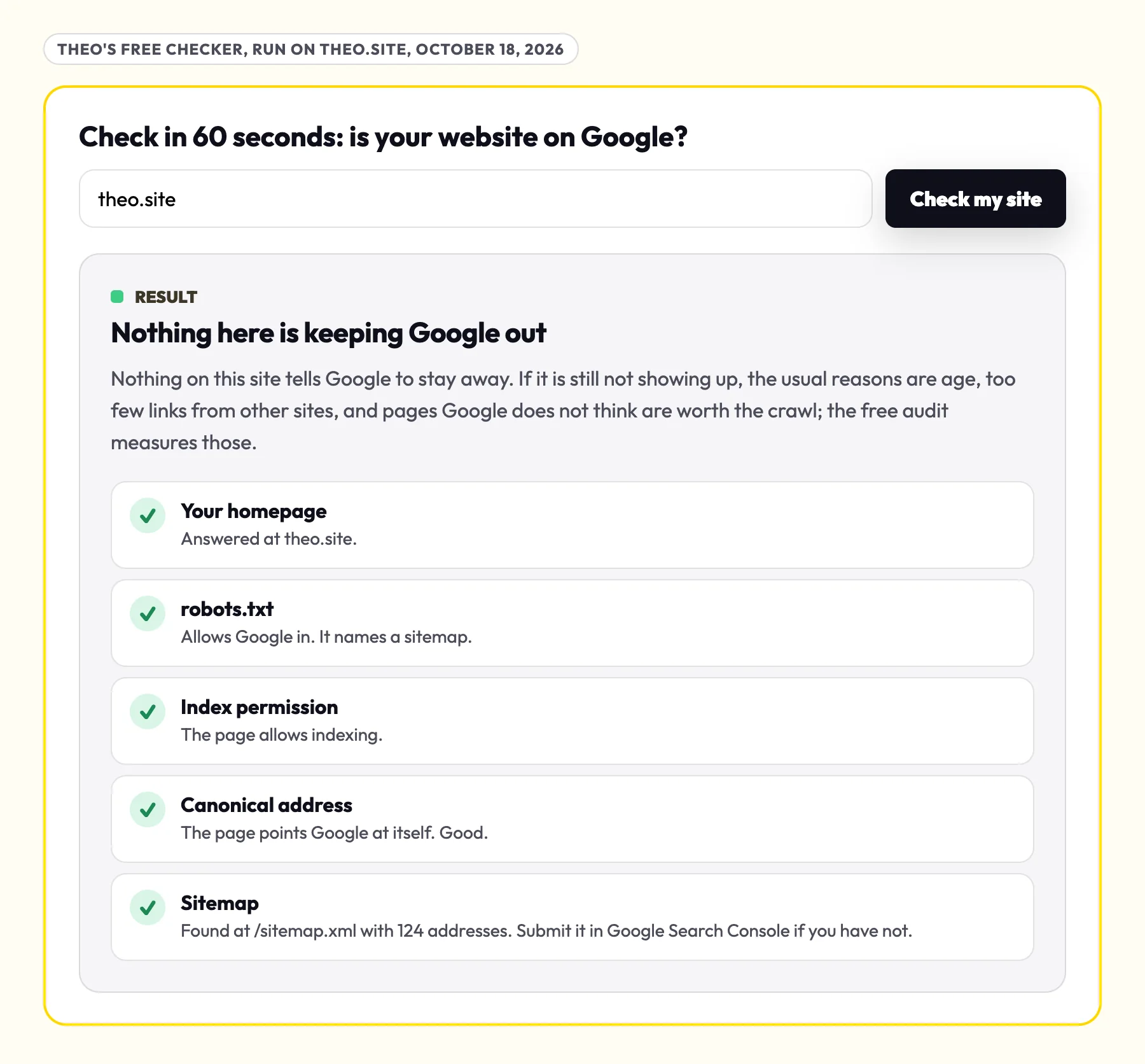
The quickest way to rule out the one case that matters most is the checker below. Paste your homepage address and it reads your robots.txt the way Google's crawler does, taking the group of rules meant for Googlebot, and says whether the file shuts out the whole site. It also checks the homepage's noindex setting, its canonical, the sitemap and, where it can tell, the platform the site is built on, which tells you which steps below are yours. No email is asked for.
It checks the homepage and the whole-site rule, not every page. To check one address, such as a product or service page, use URL Inspection in Search Console, shown in the next section.
What Blocked by robots.txt means
Google works in two steps. First it crawls a page: its robot visits and reads it. Then it decides whether to index the page, which means keeping it so it can appear in results. robots.txt is a plain text file at the root of a site, such as yourbusiness.com/robots.txt, that asks crawlers to skip certain addresses. Blocked by robots.txt is Google reporting that it did as asked: it skipped those addresses, so it has nothing to add.
Google's help for the Page indexing report is relaxed about it: "URLs blocked by robots.txt are probably intentionally blocked. Use your judgment when deciding whether to address a given issue." The same page says "It's fine for a URL not to be indexed for the right reasons," and names an expected robots.txt rule as one of them. The Google help pages quoted here were all re-read on October 19, 2026.
Seeing the row also tells you something good: Google has been crawling your site and found these addresses. If it arrived as a line in Google's email New reasons prevent pages from being indexed, the guide to that email reads the whole message line by line. This page covers the one reason.
Where to find the blocked addresses
- Open Search Console and pick your site. If you have not set it up yet, the site verification guide covers the one record Google asks for.
- In the left menu, click Indexing, then Pages, and scroll to Why pages aren't indexed.
- Click the row Blocked by robots.txt. Its Source column says Website, which means the rule lives on your site, not at Google.
- Read the example addresses Google lists under it, with the date of its last visit to each. Most of the time the pattern is clear at a glance.
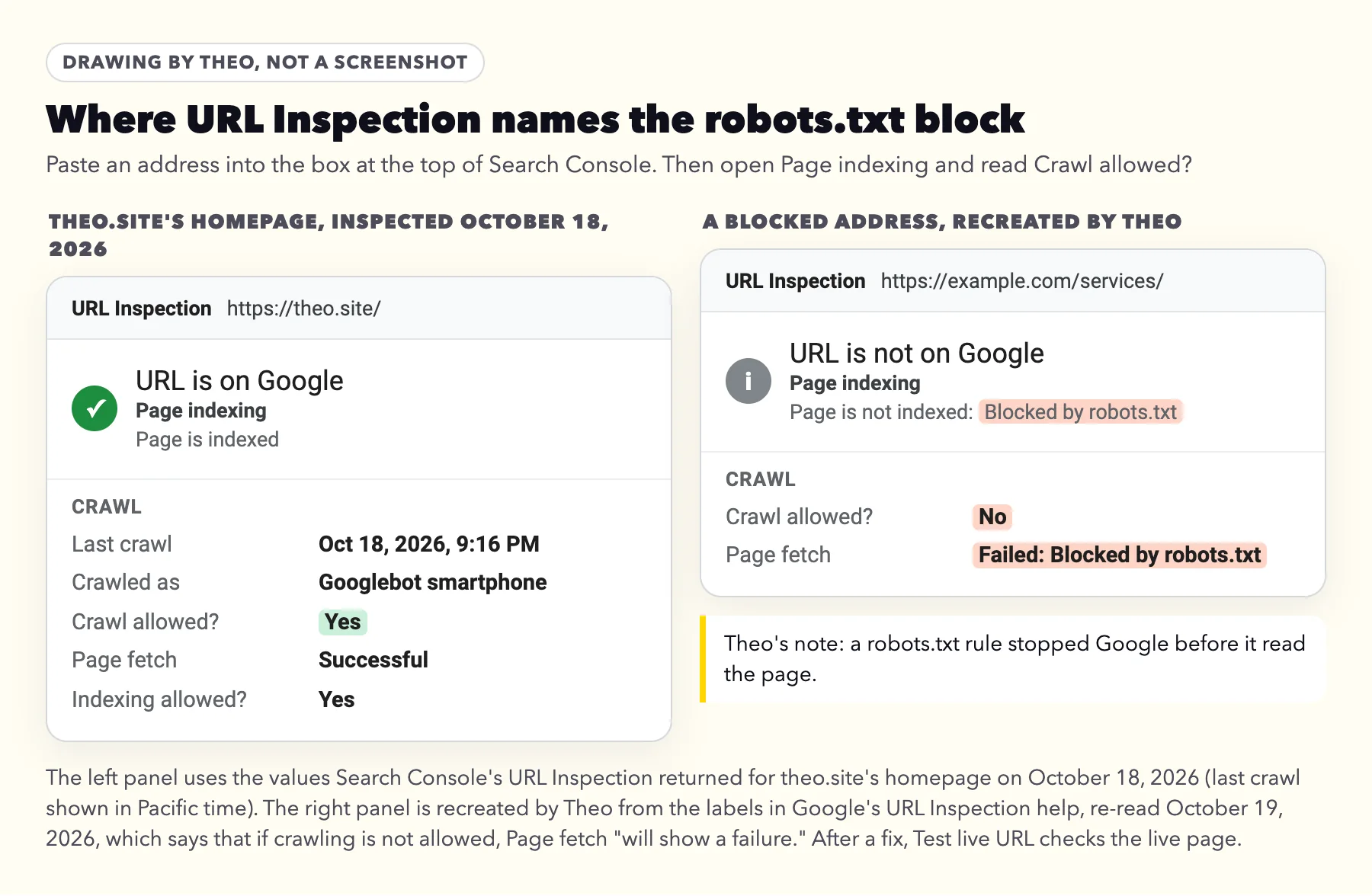
- To check one address, paste it into the URL Inspection box at the top of Search Console and open Page indexing. Crawl allowed? should read Yes.
Sort each address with three questions
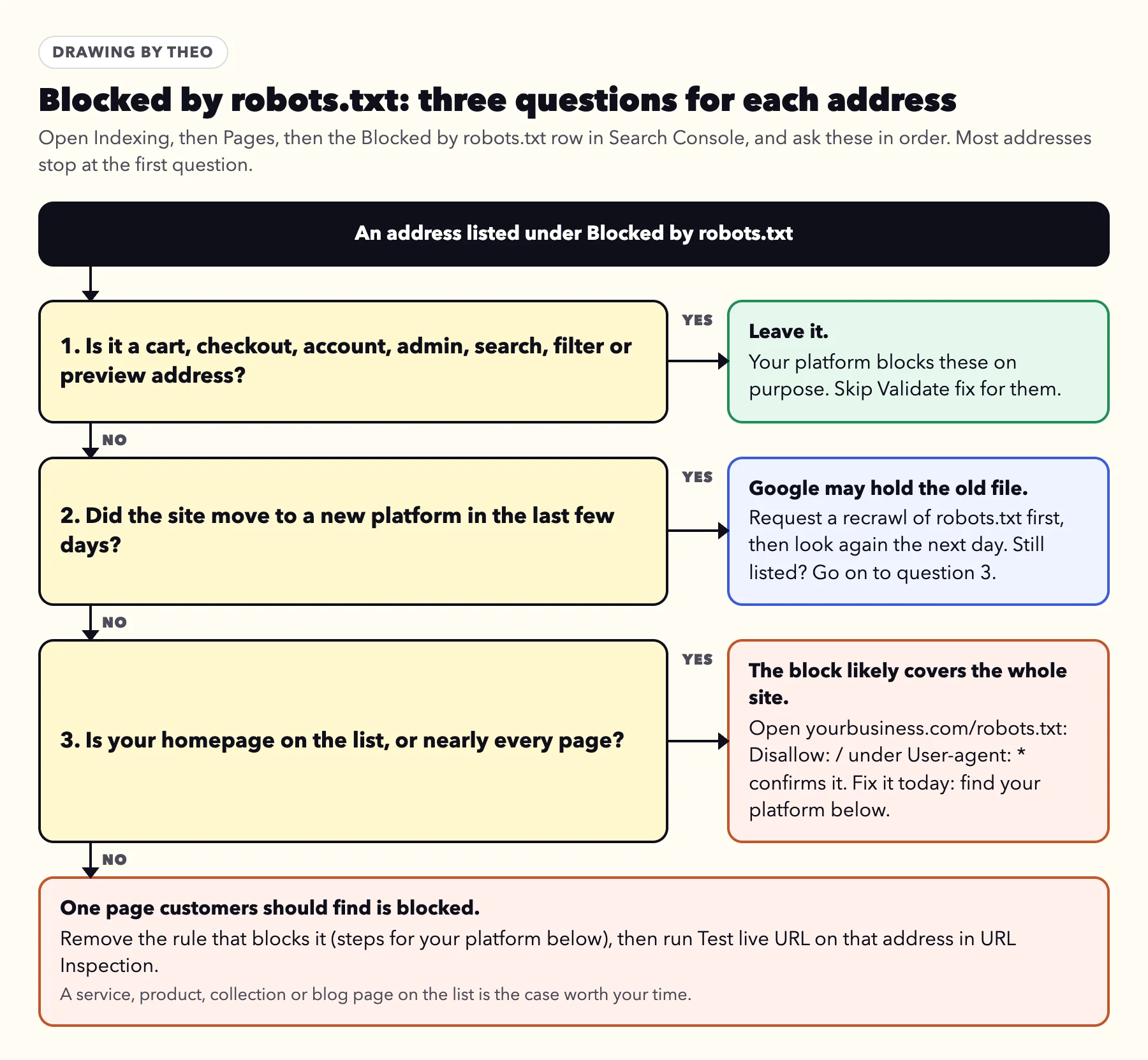
Ask these in order for each address under the row. Most addresses stop at the first one.
- Is it a cart, checkout, account, admin, search, filter or preview address? Then your platform blocks it on purpose. Leave it, and do not click Validate fix for it. The table in the next section lists what each platform blocks.
- Did the site move to a new platform in the last few days? Google may still be working from the old site's file, even for the homepage. Request a recrawl of robots.txt, as shown below, and look again the next day before changing anything. If addresses you want found are still listed then, go on to the next question.
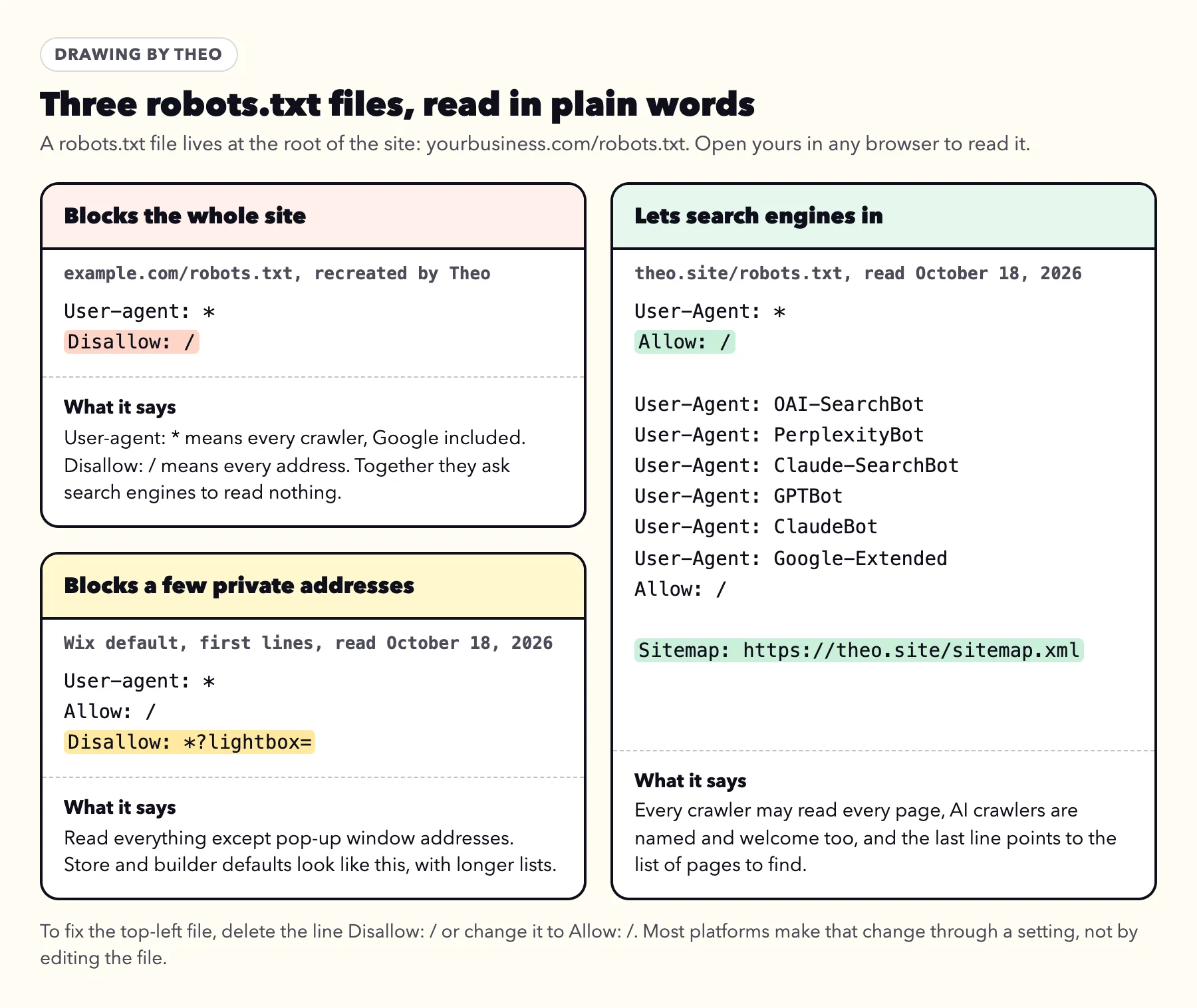
- Is your homepage on the list, or nearly every page? Then the block likely covers the whole site. Open yourbusiness.com/robots.txt: a Disallow: / line in the group that starts User-agent: * (or User-agent: Googlebot) confirms it. The same line under another crawler's name, such as PetalBot in Wix's default file, does not apply to Google. Fix it the same day, using the steps for your platform below.
Which blocked addresses are normal on each platform
Every major platform ships its own robots.txt file, and each one blocks a short list of addresses on purpose. Google's own help for this status stops short here: "we can't provide exact guidance how to update your robots.txt file because every hosting service has its own way to do this." So the table does it. It was built from live files read on October 18 and 19, 2026: Shopify stores, Squarespace sites, Wix sites on their own domains and GoDaddy Website Builder sites, plus the code WordPress uses to write its file and the lines WooCommerce adds to it. If an address in your report matches a row, it is meant to be there.
Not sure which platform your site runs on? The free platform checker names it in a few seconds. Of 6,861 small business sites whose owners ran Theo's free audit (August 2 to September 30, 2026), 24 percent ran on Shopify, 14 percent on WordPress, 6 percent on Wix, 4 percent on Squarespace and 4 percent on GoDaddy Website Builder (the research), so the steps further down follow that order.
| Platform | Addresses its file blocks | What they are | What to do |
|---|---|---|---|
Shopify | /checkout, /checkouts/..., /orders and /orders/..., /account and /account/... (only /account/login, the sign-in page, stays open), /admin | Checkout steps, order status, customer accounts and the store admin | Leave them |
Shopify | /cart/... and /cart.js (add-to-cart links, not the cart page itself) | Links that put an item in the cart | Leave them |
Shopify | Collection addresses with sort_by=, a + between tags, or two filter= parts | Sorted and filtered copies of a collection; the plain collection page stays open | Leave them |
Shopify | /recommendations/products, /cdn/wpm/..., /sf_..., /services and /services/..., and addresses with preview_theme_id= | Behind-the-scenes store requests and theme previews | Leave them |
Shopify, older or edited files | /search, /policies/..., /cart, /carts | Store search results, the policy pages and the cart page | Leave them |
Squarespace | /config, /account, /api/..., /static/..., /commerce/digital-download/... | The admin sign-in, customer accounts, site files and digital download links | Leave them |
Squarespace | /search, and addresses with ?tag=, ?author=, ?month=, ?view= or ?format= | Site search, blog filters and data versions of pages | Leave them |
Wix | Addresses ending in ?lightbox=... | Pop-up windows | Leave them |
WordPress | /wp-admin/ (one file inside it, admin-ajax.php, stays open) | The dashboard | Leave it |
WordPress with WooCommerce | Addresses with ?add-to-cart=, and files under /wp-content/uploads/wc-logs/, /wp-content/uploads/woocommerce_transient_files/ or /wp-content/uploads/woocommerce_uploads/ | Add-to-cart links and the store's log, temporary and download files | Leave them |
GoDaddy Website Builder | /404 | The page-not-found page | Leave it |
Any platform | Your homepage, or a service, product, collection or blog page | A page customers should find | Fix it: steps for your platform below |
What 327 small business robots.txt files showed
On October 18 and 19, 2026, Theo read the robots.txt files of 327 small business sites whose owners had run its free audit: 63 on Shopify, 60 on WordPress, 62 on Wix, 64 on Squarespace and 78 on GoDaddy Website Builder. Two of them asked Google to stay out of the whole site, one Shopify store and one Squarespace site. None of the other 325 blocked the homepage.
The defaults held. 58 of the 63 Shopify stores served Shopify's current file, which leaves the cart page, store search and policy pages open; the older and edited files block those as well. 57 of the 64 Squarespace sites served the shared file in the table, 52 of the 62 Wix sites served the Wix default, and 53 of the 78 GoDaddy Website Builder sites served the single /404 rule. WordPress varied most, because plugins add their own lines: 17 of the 60 served exactly the rules WordPress writes itself. 12 of the 60 carried the lines WooCommerce adds on purpose: all 12 block its store files, and 11 also block its add-to-cart links. A few sites had moved to another platform since their audit, so their files no longer match the label.
When a block needs a fix
Three situations are worth your time. Each one shows up in a way you can spot without reading code.
- The whole site. Your homepage is on the list, or nearly every page is, and the checker above says the file blocks the whole site. Open yourbusiness.com/robots.txt in a browser: a line Disallow: / under User-agent: * (or under User-agent: Googlebot) asks Google to read nothing.
- One page customers should find. A service, product, collection or blog page is listed. On the platforms in the table, their default files never block those pages, so a rule was added by hand, by an add-on or by whoever built the site (on Wix, a page setting can also add one).
- Pages your sitemap lists. Set the filter above the Page indexing chart to All submitted pages. If Blocked by robots.txt still shows rows, your sitemap and your robots.txt disagree: one asks Google to find those pages and the other asks it to skip them. Keep the page and unblock it, or take it out of the sitemap. The Sitemaps report shows the same disagreement under Google's label Sitemap contains urls which are blocked by robots.txt, and Google's Sitemaps report help says to confirm the address in URL Inspection, then change robots.txt to let Googlebot in.
What the checker says in each case
Run on theo.site on October 18, 2026, the checker at the top of this page answered "Allows Google in. It names a sitemap." on its robots.txt line. A file that shuts out the whole site gets a different line: "Blocks the whole site from Google. Remove the 'Disallow: /' line that applies to Googlebot." A site with no robots.txt at all gets "No robots.txt answered. That is allowed; Google treats a missing file as no restrictions."
How to fix Blocked by robots.txt on your platform
Find your platform below. Each one keeps the file in a different place, and on most of them a setting writes it for you. When you have made the change, finish with the Search Console clicks in the section after these. GoDaddy Website Builder's default file blocks only its /404 page; if a GoDaddy file blocks more than that, GoDaddy support can say which setting wrote it.
A rule does not have to name your page to block it. It covers every address that starts with what it lists, so Disallow: /services also blocks /services/drain-cleaning, and a * in a rule stands for anything at that spot. Google's help says: "Use a robots.txt validator to find out which rule is blocking your page." Paste the page's address into one, and it shows the line that blocks it. After the edit, Test live URL in URL Inspection confirms Google can reach the page.
Shopify
Shopify's help says "All Shopify stores have a default robots.txt file that's optimal for Search Engine Optimization (SEO)." The current default file opens with a note that says the same: "Public product, collection, page, blog, policy, cart, and localized HTML is crawlable." Of the 63 store files Theo read on October 18, 2026, only one blocked a plain product, collection, page or blog address, by shutting out the whole store, and on October 19 that store showed Shopify's Store unavailable page. Leave its checkout, cart link, order and account rules alone. If a product or collection page you want found is on the list, the store's theme carries its own robots.txt.liquid file with an extra rule:
- In your Shopify admin, go to Online Store.
- Next to your live theme, click the ... button and choose Edit code.
- Under Templates, look for robots.txt.liquid. If it is not there, the store uses Shopify's default file.
- If it is there, ask whoever added it to remove the rule the validator named. Shopify calls editing this file "an unsupported customization", and Shopify Support does not help with edits to it.
- To return to Shopify's default, right-click robots.txt.liquid and choose Delete permanently.
WordPress
WordPress writes its own file, and it blocks only the dashboard, /wp-admin/, as WordPress's developer reference shows. The Search engine visibility box under Settings, then Reading, does not add Disallow: / to that file: since WordPress 5.3 it adds a noindex tag instead, so a site with the box ticked shows up as Excluded by 'noindex' tag, which has its own guide.
WordPress writes its own file only when no robots.txt has been uploaded to the site's main folder, and any plugin can add lines to it. So any line beyond WordPress's own comes from one of three places: a robots.txt file someone uploaded there, which is served in place of WordPress's own; an SEO plugin's file editor; or another plugin that adds its own lines, as WooCommerce does on stores. WooCommerce's lines, for add-to-cart links and store files, are on purpose: leave them. If your site already uses an SEO plugin, its robots.txt editor is the first place to look:
- Open the SEO plugin from the dashboard menu and find its robots.txt editor, usually under Tools or General Settings and named File editor, Edit robots.txt or Robots.txt Editor.
- If the editor is not there, look for an advanced mode switch in the plugin, or a switch that turns custom robots.txt rules on.
- In the editor, remove the rule the validator named, or Disallow: / if the whole site is blocked, and save.
- If the plugin's editor does not show the rule you see at yourbusiness.com/robots.txt, it comes from an uploaded file or another plugin. Your host or developer can tell which and remove it.
Wix
Wix's help says the file "allows search engine bots to access all of your site's pages by default," and its default blocks only pop-up window addresses. If a page is on the list, Wix's help says to check that page before touching the file: whether search engines are kept off it in the Editor or in SEO Settings, or whether it is password protected or for members only. Wix updates the file to match those settings when you publish. If none of those applies, the file was edited:
- In your site's dashboard, open SEO & GEO.
- Scroll to Tools and settings and click Robots.txt Editor, then View File.
- Remove the rule the validator named, then click Save Changes and Save. Or click Reset to Default, then Reset, to put Wix's own file back.
- If the whole site is missing from Google, check SEO Settings in the same Tools and settings list: the Let search engines index your site switch should be on.
Squarespace
Squarespace's help is plain about its file: "All Squarespace sites use the same robots.txt file and Squarespace users can't access or edit the file." Its rules block the admin sign-in, site search, accounts and blog filter views, and Squarespace says those messages can be ignored. One setting can block the whole site:
- Open the Settings panel and click Crawlers.
- Look at Block Search engine crawlers. Squarespace's help on hiding a site says this box adds Disallow: / to the file. If your whole site is blocked, uncheck it.
- The other box, Block known artificial intelligence crawlers, names AI crawlers only. Googlebot is not on its list, so it does not affect Google Search.
- To keep one page off Google instead, open the Pages panel, click the gear next to the page, open the SEO tab and switch on Hide page from search results. That adds noindex, the method Google recommends. The homepage has no such switch: the same help page notes that "Homepages and individual collection items don't have a Hide page from search results toggle."
A site built by Theo
Theo builds each site with a robots.txt that lets search engines in and names the sitemap. Buy My Lunch's file at buymylunch.com/robots.txt, read on October 18, 2026, is three lines: User-Agent: *, Allow: / and its Sitemap line.
A Theo site's temporary onrender.com address stays off Google the way Google recommends: its robots.txt allows crawling, and every page answers with a noindex header (x-robots-tag: noindex, nofollow, checked October 18, 2026 on two sites built by Theo). If Search Console reports Blocked by robots.txt for a Theo site, it is the old site's file from just before the move, covered next. If it is still there a few days after the move, ask in chat.
Just moved your website? Google may be reading the old file
In one Theo support case, an owner who had just moved a site off WordPress found Search Console still reporting Blocked by robots.txt. Google was still working from the old site's file. Nothing on the new site was blocking anything.
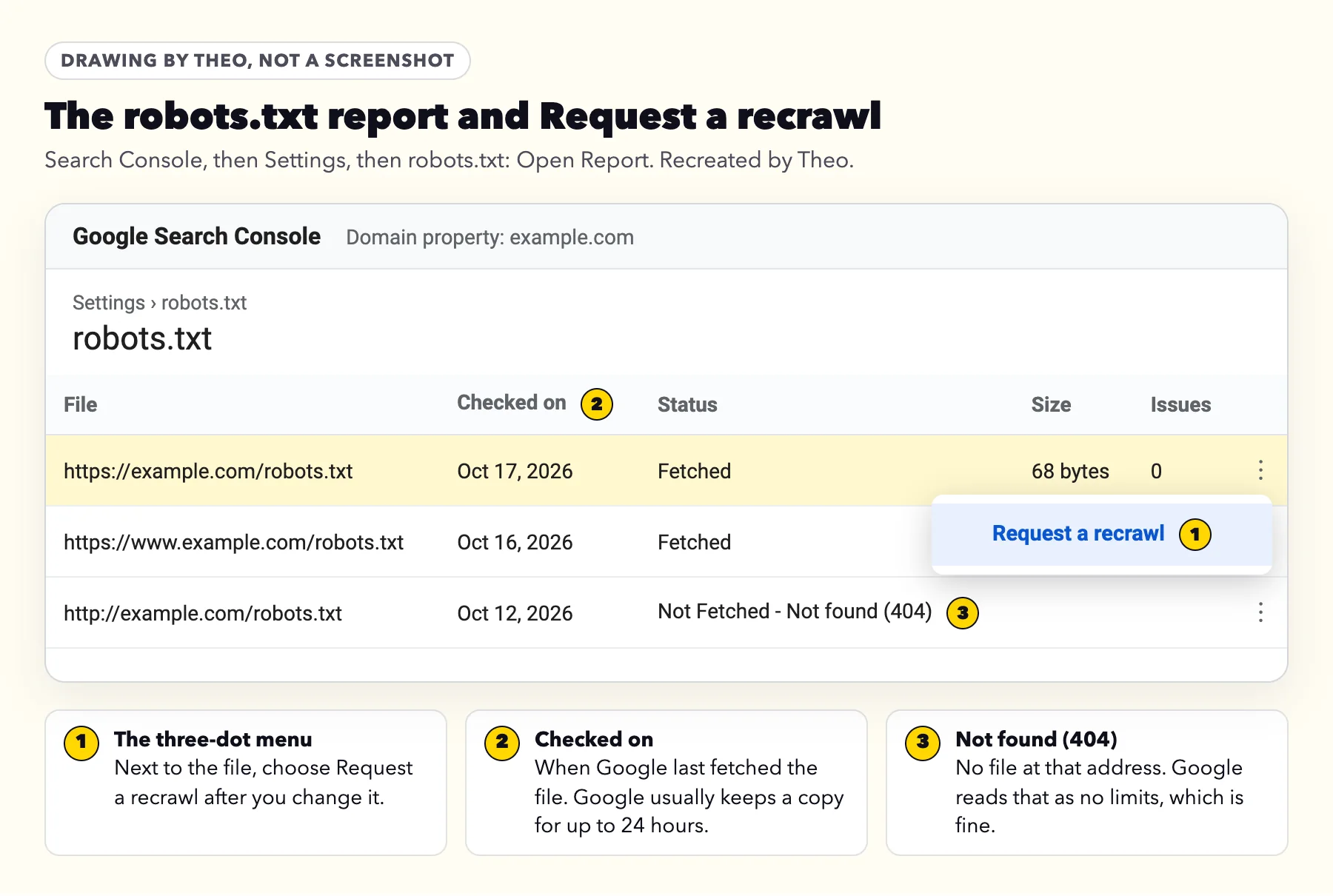
That lag is normal. Google's robots.txt documentation says it "generally caches the contents of robots.txt file for up to 24 hours," and longer if it cannot fetch a fresh copy. A missing file is fine too: for a robots.txt address that answers 404, Google says "Google assumes that there are no crawl restrictions."
- In Search Console, click Settings, then Open Report next to robots.txt. The report needs a Domain property or a property for the whole site, not a single folder.
- Find your main address in the list, such as https://yourbusiness.com/robots.txt.
- Click the three-dot menu next to it and choose Request a recrawl.
- The next day, check Checked on and Status in the same report, then run Test live URL on your homepage in URL Inspection.
What else changes after a move
Google's report help adds that "You generally don't need to request a recrawl of a robots.txt file, because Google recrawls your robots.txt files often," so this is a one-time nudge, not a routine. The other labels that appear after a move, such as old addresses forwarding to new ones, are covered in what a move does to search and in the guide to the indexing email.
Indexed, though blocked by robots.txt: what it means and how to fix it
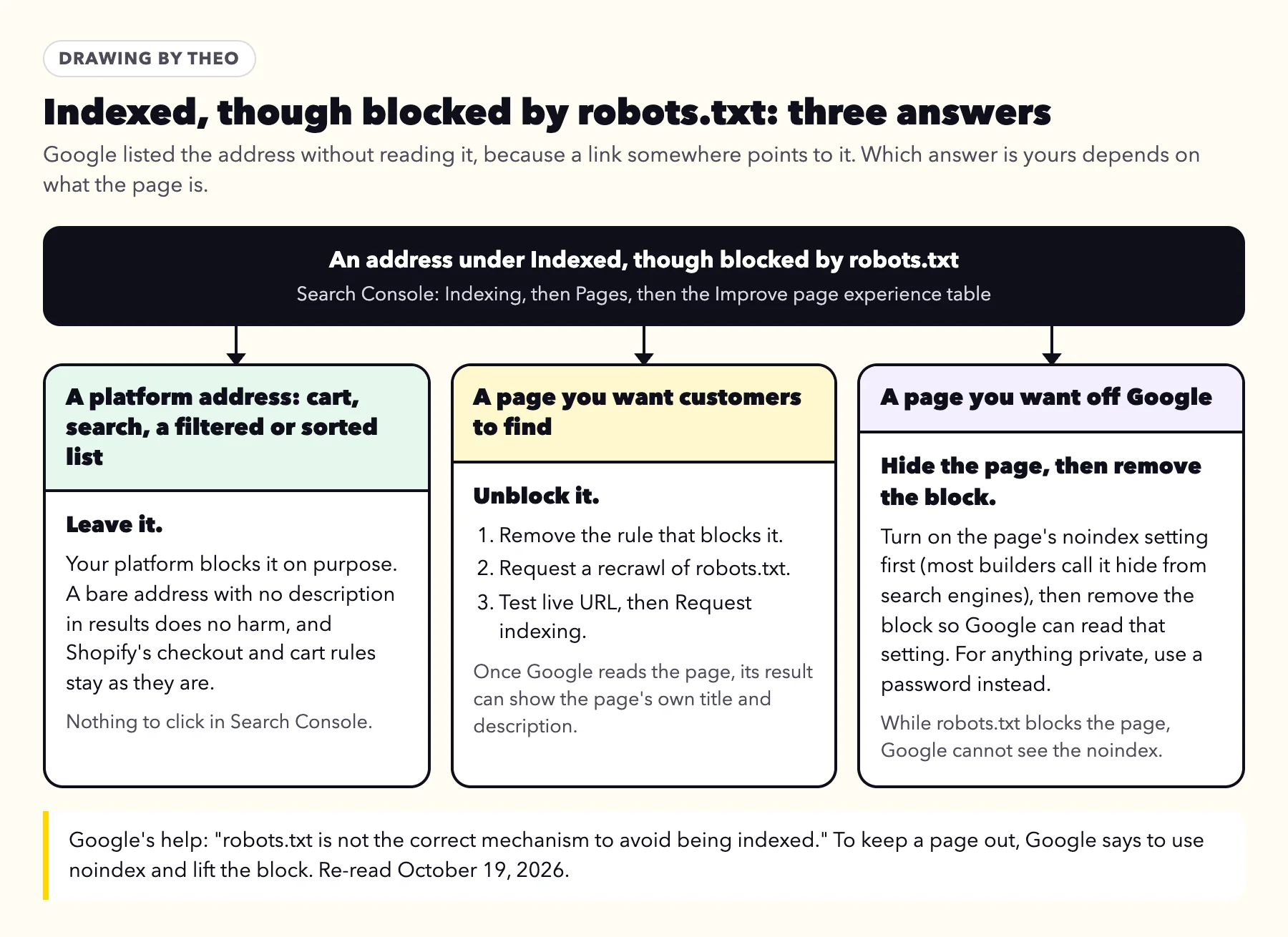
This is a different status, and it sits in a different place: the Improve page experience table of the Page indexing report, not the list headed Why pages aren't indexed. Google explains: "Google always respects robots.txt, but this doesn't necessarily prevent indexing if someone else links to your page." Google never read the page, but a link elsewhere told it the address exists, so the address can appear in results with little or no description.
The fix depends on the page, and there are three answers. Google is clear about the last one: "robots.txt is not the correct mechanism to avoid being indexed." Its URL Inspection help explains why: while a page is blocked by robots.txt, Indexing allowed? "will always be 'Yes' because Google can't see and respect any noindex directives."
- A platform address, such as a cart link, store search or a filtered collection: leave it. A bare address with no description does no harm, and Shopify's checkout and cart rules stay as they are.
- A page you want customers to find: unblock it with the steps for your platform above, then request a recrawl of robots.txt and request indexing for that page.
- A page you want off Google: turn on its noindex setting first (most builders call it hide from search engines), then remove the robots.txt block so Google can read that setting; the noindex guide has each platform's switch. For anything private, use a password instead.
Indexed, though blocked on WordPress
On WordPress the rule sits in an SEO plugin's file editor, an uploaded file or another plugin, and the WordPress steps above show where to look. Addresses with ?add-to-cart= come from WooCommerce's own lines: leave them, like any platform address. For a page you want hidden, turn on the plugin's or the page's noindex option first, then remove the rule, so Google can read the page and see that setting.
After the fix: what to click, and the two clocks
Run these once, after a real change. Skip them for the addresses your platform blocks on purpose.
- Request a recrawl of robots.txt in Settings, as shown above. This is the first clock: Google generally refreshes its copy of the file within a day.
- Test the page. Paste the address into URL Inspection and click Test live URL. Crawl allowed? Yes in the live test means the block is gone.
- Request indexing for the one or two pages that matter most. URL Inspection has a daily limit, so save it for those.
- Click Validate fix on the Blocked by robots.txt row once, and only if every address under it was a block you have now removed. If the row also lists addresses your platform blocks on purpose, skip it: in Google's words, "validation will stop when Google finds a single remaining instance of that issue." The Validate fix timeline on the email guide shows what happens after you click.
- Wait for the second clock. The rows clear as Google revisits each address on its own schedule, which takes days to weeks. A page you just unblocked can show up sooner after step 3, and how to get Google to index your site covers what else helps a page get picked up.
Common advice online that does not fit this status
A few tips that circulate about this label are out of date or answer a different question. Here is what holds on October 19, 2026.
- "Use the robots.txt Tester." Google has replaced it with the robots.txt report under Settings and the live test in URL Inspection.
- "The WordPress visibility box writes Disallow: /." Not since WordPress 5.3. The box adds a noindex tag, which shows up as Excluded by 'noindex' tag.
- "Shopify's robots.txt cannot be changed." It can, through the theme's robots.txt.liquid file, though the default suits most stores. No proxy or extra service is needed.
- "Add a Noindex: line to robots.txt." Google's robots.txt rules support four fields: user-agent, allow, disallow and sitemap. A noindex line does nothing; use the page's own noindex setting.
- "Block a page in robots.txt to keep it off Google." Google's introduction to robots.txt says the file "is not a mechanism for keeping a web page out of Google." Use noindex or a password.
- "Click Validate fix on every row." Only after a real change. Addresses blocked on purpose stay listed, and that is fine.
Can Theo handle this for you?
Owners who forward Google's indexing emails to Theo often ask exactly that. On a site Theo builds, yes: the robots.txt is part of the site, it lets search engines in, and nothing in it is for the owner to manage.
On Starter and Pro, the Growth Engine's SEO repair goes further. It pulls issues from Google Search Console and a direct check of the site, inspecting the homepage, the top pages and recently changed pages with URL Inspection and reading the sitemap's status. When a robots or noindex rule is keeping out a page that should be found, it drafts the fix, and the fix waits in the Growth tab for your review unless auto-publish is on. Rules that block checkout or admin addresses on purpose are left alone.
In place of page-by-page requests, Theo submits the site's sitemap when Search Console is connected, and Google revisits on its own schedule. If your site is somewhere else, the free audit reads it with no login and shows what Google can and cannot reach.
Frequently asked questions
Is Blocked by robots.txt bad for my SEO?
No. The addresses platforms block on purpose, such as checkout, account, admin and filter pages, have no place in search results. If your homepage or a page you want found is on the list, the steps above unblock it.
Do I need to fix every page blocked by robots.txt?
No. Google's own help says URLs blocked by robots.txt are probably blocked on purpose and asks you to use judgment. Fix only pages you want people to find, and do not click Validate fix for the ones your platform blocks.
What is the difference between Blocked by robots.txt and Indexed, though blocked by robots.txt?
With Blocked by robots.txt, Google skipped the page and left it out. With Indexed, though blocked, Google still skipped the page but listed the bare address anyway, because a link points to it. The first needs a fix only for pages you want found; the second has three answers: leave it, unblock it, or turn on noindex and then remove the block.
I just moved my website and Search Console says pages are blocked. What happened?
Google may still be using the old site's robots.txt. It keeps a copy for up to 24 hours, longer if it cannot fetch a fresh one. Request a recrawl in Settings, robots.txt report, and look again the next day.
Search Console says my robots.txt was not found (404). Is that a problem?
No. Google's help says not having a robots.txt file is fine and means Google can crawl every address on the site.
Can I edit robots.txt on Shopify, Wix, Squarespace or WordPress?
On Shopify, yes, through the theme's robots.txt.liquid file, though the default suits most stores. On Wix, yes, in SEO and GEO, Tools and settings, Robots.txt Editor. On Squarespace, no: every site shares one file, and the only switch that affects Google Search is Block Search engine crawlers in Settings, Crawlers. On WordPress, through an SEO plugin's editor or the file on the server.
How long until an unblocked page shows up on Google?
Google refreshes robots.txt within about a day, sooner if you request a recrawl. Once the block is gone, Google reads the page on its next visit and can then add it to search. That visit can take days to a few weeks; Request indexing in URL Inspection can help for one important page.
What does Sitemap contains urls which are blocked by robots.txt mean?
It is the Sitemaps report's way of saying that your robots.txt asks Google to skip your sitemap or some of the pages it lists, so Google skips them. If you want the pages found, remove the rule. If you do not, take them out of the sitemap. Filter the Page indexing report to All submitted pages to see which ones.
When you would rather not think about robots.txt
Theo builds the site with a file that welcomes search engines, hosts it, and on Starter and Pro keeps checking how Google sees it, with page changes waiting in the Growth tab for your OK unless you turn on auto-publish. From $69.99 a month on Starter, free for 30 days. See what the ongoing search work covers.
More like this in the guides and under getting found on Google. The audit numbers quoted across these posts are in Theo's research.