
Where the google-site-verification line goes
Quick answer
The google-site-verification line goes in your domain's DNS settings, at the company that runs them. That is usually the company you pay for the domain each year. Add one new record: Type TXT, Name @ (or leave it blank if the company says to), Value the whole line, starting with google-site-verification=. Save it, then go back to Search Console and click Verify. A TXT record does not move your website or change your email.
it's telling me to add this text google-site-verification=[code] To my DNS and I don't know where that goes
Most people who search for this are in the same spot. Google or a web designer handed over a long line of letters with the words "add it to your DNS", and nobody said where DNS is.
DNS is the short list of settings, kept by the company that runs your domain, that tells the internet where your website and email live. The verification line becomes one more entry on that list. It sits beside the others and changes none of them, which is why adding it is safe even on a domain that carries your business email.
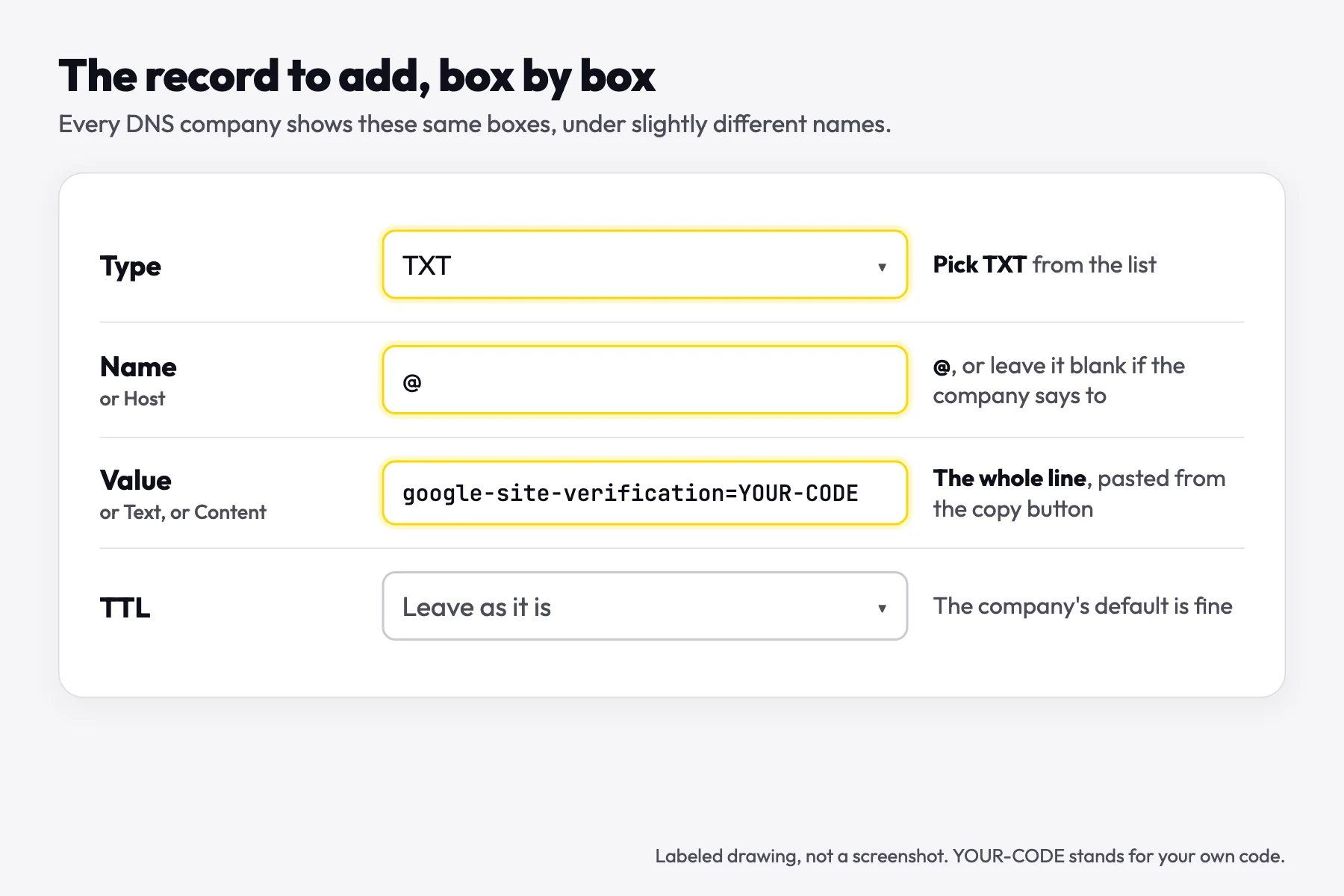
Fill in the four boxes as shown below. Then use the free checker under this section to see whether the internet can read your record yet.
What google-site-verification is, and which Google product is asking
google-site-verification is a code Google makes for one Google account and one domain. When Google finds it in the domain's DNS, it knows the person who asked for it controls the domain. Search Console Help describes ownership verification as "proving to Search Console that you own a specific website."
What you get once it is verified is Search Console itself: the searches your site shows up for, how many people click through, which pages Google has in its index, and a note when something keeps a page out. One line covers the whole domain. Google's help says that verifying a root domain "automatically verifies ownership of all subdomains," so www and every other subdomain come with it.
Setting it up puts nothing at risk. Google's page on adding a property says the step "does not affect your website" on Google Search, and that if you don't finish in one sitting, "it won't hurt your website."
The same kind of line turns up in more than one Google product, which is where most of the mix-ups start. Each row below was checked against Google's own help on October 19, 2026: Search Console Help, Google Workspace Help and Business Profile Help. If one of Google's emails about indexing brought you here instead, the Search Console guide explains each reason in it.
| Google product | Uses a google-site-verification TXT line? | Keep the line afterwards? |
|---|---|---|
Search Console, the free report on how your site shows up in Google Search | Yes. A DNS record (this TXT line, or a CNAME Google offers instead) is the only way to verify a Domain property. | Yes. Google's help says: "To stay verified, don't remove the DNS record from your provider, even after verification succeeds." |
Google Workspace, for Gmail and Calendar on your own domain | Yes. It uses the same google-site-verification= format, made in the Google Admin console. | Google's Workspace help says "Once verified, the TXT record can be safely removed." Keeping it does no harm. |
Google Business Profile, your listing on Maps and Search | No. Google picks the method for each business, such as a phone call, text, email, video or postcard. | There is nothing to keep. Google's Business Profile help says "In some cases, Google verifies a profile instantly," and names verifying your website in Search Console as one of them. The video verification guide covers the listing. |
Where the record goes: the company that runs your DNS
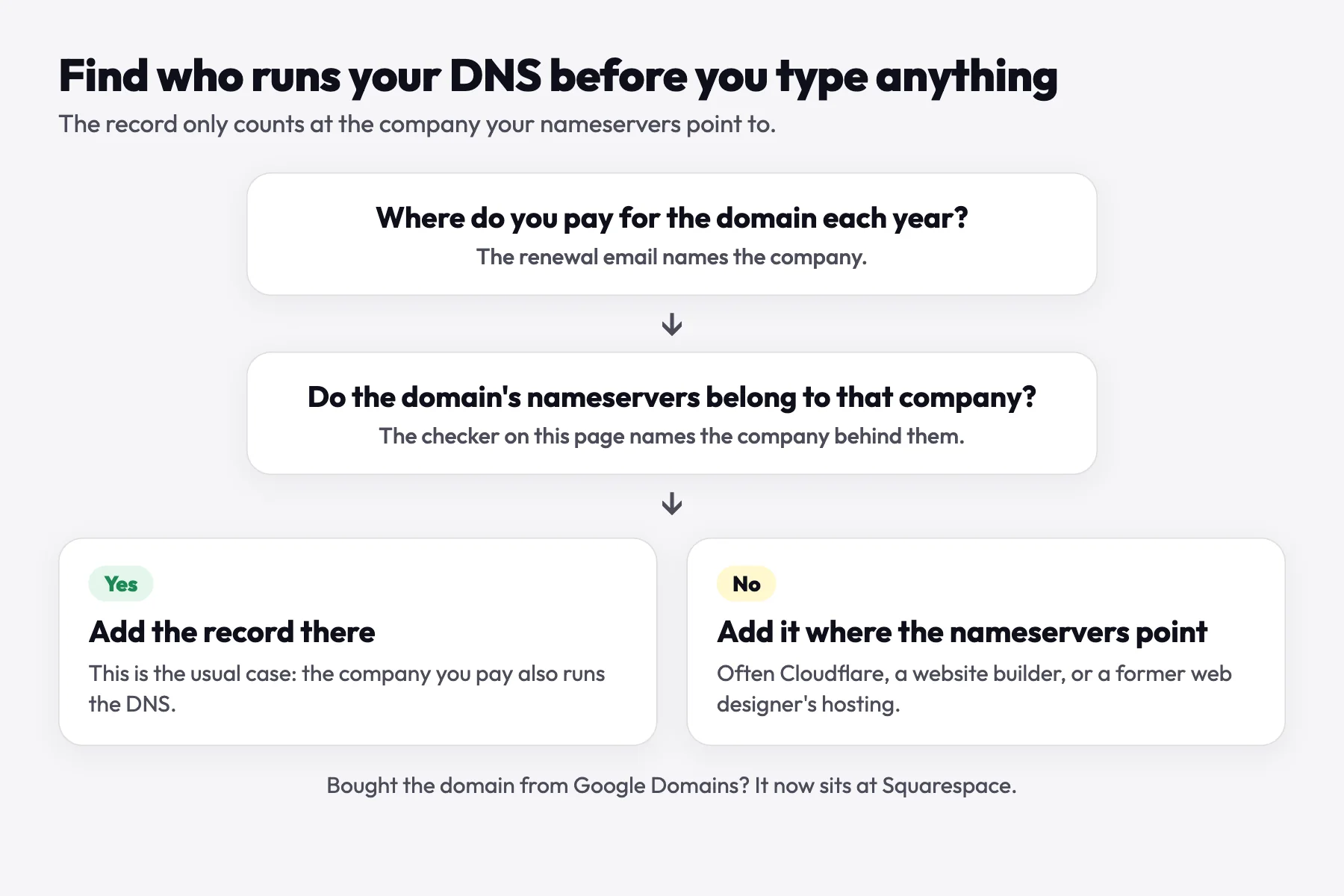
Google's help sends you to your domain name provider, "the company that you purchased your domain name from." That is right for most small businesses. The exception is a domain whose nameservers point somewhere else. Nameservers decide which company's DNS list the internet reads, so a record added at any other company is never seen.
Nameservers usually point elsewhere for one of three reasons: the domain was set up on Cloudflare, a website builder took over the DNS when the site was connected, or a former web designer pointed the nameservers to their own hosting. The checker above names the company behind your nameservers, and your yearly renewal email names the company you pay.
Bought the domain from Google Domains? Google's notice says all Google Domains users became Squarespace customers when the sale closed on September 7, 2023, so the DNS settings now sit in a Squarespace account.
You do not need Gmail for any of this. Google's account help says "You don't need to have a Gmail address to create a Google Account," so the email address you already use for the business works.
How to add the google-site-verification TXT record in 5 steps
These steps follow Search Console Help, read on October 19, 2026. They work at any domain company, and the next section gives each large company's own menu names.
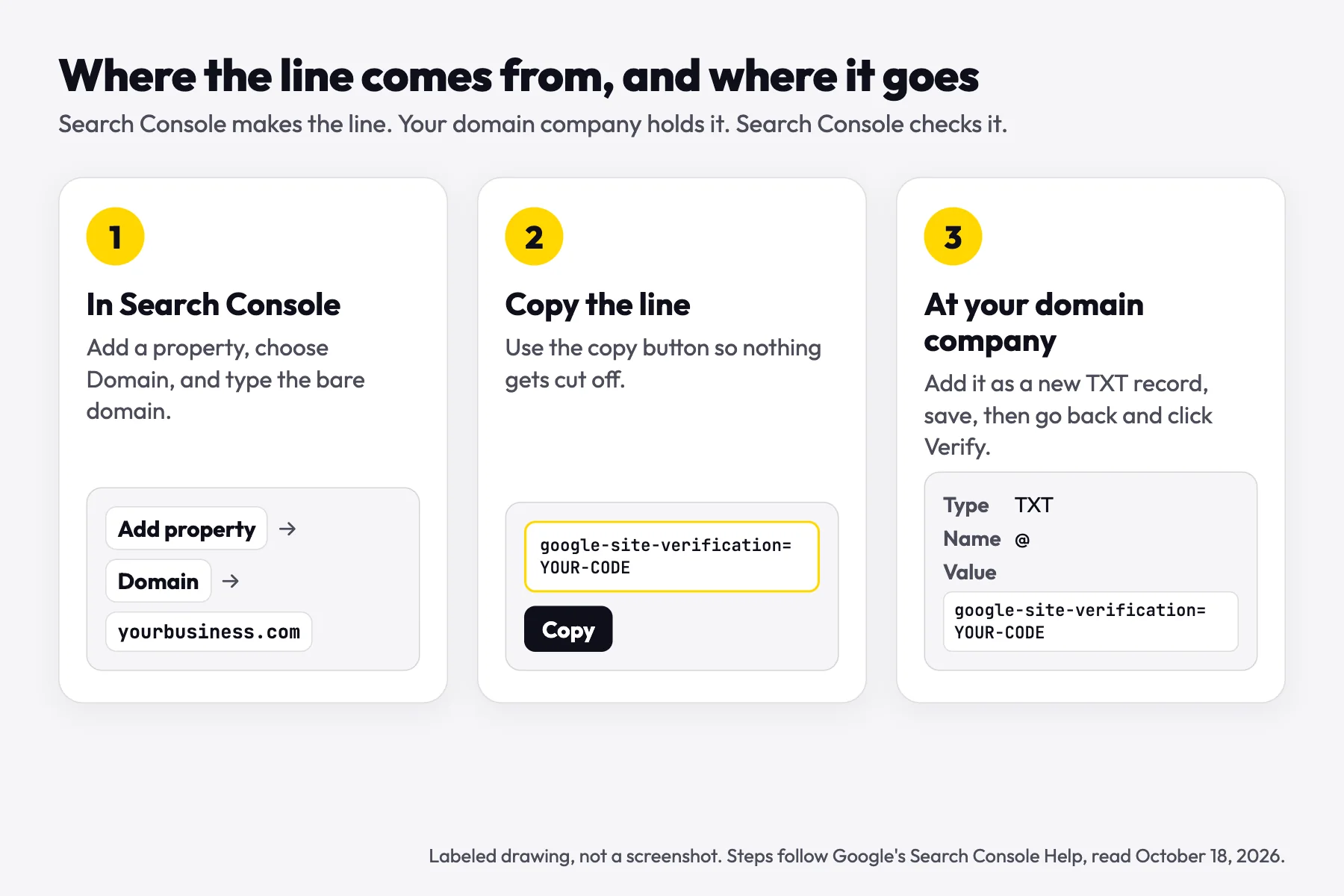
- Get the line from Search Console. Choose Add property, pick Domain, and type the bare domain, such as yourbusiness.com, with no www or https. If Google asks you to select a record type, choose TXT. Google's help says "Most sites use TXT records for domain verification." The other choice, CNAME, is only for a domain that already has a CNAME record pointing to a parent domain. Google shows the line with a copy button. Use the button rather than selecting the text by hand, so the end is not cut off. If Google shows a Start verification button instead of a line, see If a sign-in window opens, below.
- Sign in where your DNS lives. Open the domain and find its DNS records. Google's help says to look for something like DNS Records, Domain Management or Name Server Management. Some companies call it Advanced DNS or Zone Editor.
- Add a new record. Choose TXT as the type, put @ in the Name or Host box (or leave it blank if the company asks for that), and paste the whole line into the Value box. Leave TTL as it is. Do not edit a record that is already there, least of all one that starts with v=spf1, which is your email line.
- Save it and look for it. The new line should now appear in the record list. If the company asks for your password or a code sent to your phone first, finish that step, because the record is not saved until you do.
- Click Verify in Search Console. If Google says it cannot find the record yet, run the checker above before you wait any longer. It shows whether the line is visible and, if not, the most likely reason.
Where to find the code again later
Lost the line, or need it again? While you are still verifying, run the Domain steps again until the line shows. For a property that is already verified, Google's help says to open Search Console and click the property's name in your list of properties, which shows "a list of verification methods for the property." Next to DNS TXT record, click Details to see the value.
A website builder with a box called Google site verification wants something different: Google's HTML tag, which comes from a URL-prefix property, not the TXT line. Builders differ. Some boxes take only the content value, the part between the quotes in <meta name="google-site-verification" content="...">. Others take the whole tag, starting with <meta. Paste what the box's label or the builder's help asks for. The HTML tag steps are further down. On a Theo site, the TXT line shows in the Analytics panel, labeled TXT @.
What a finished record looks like
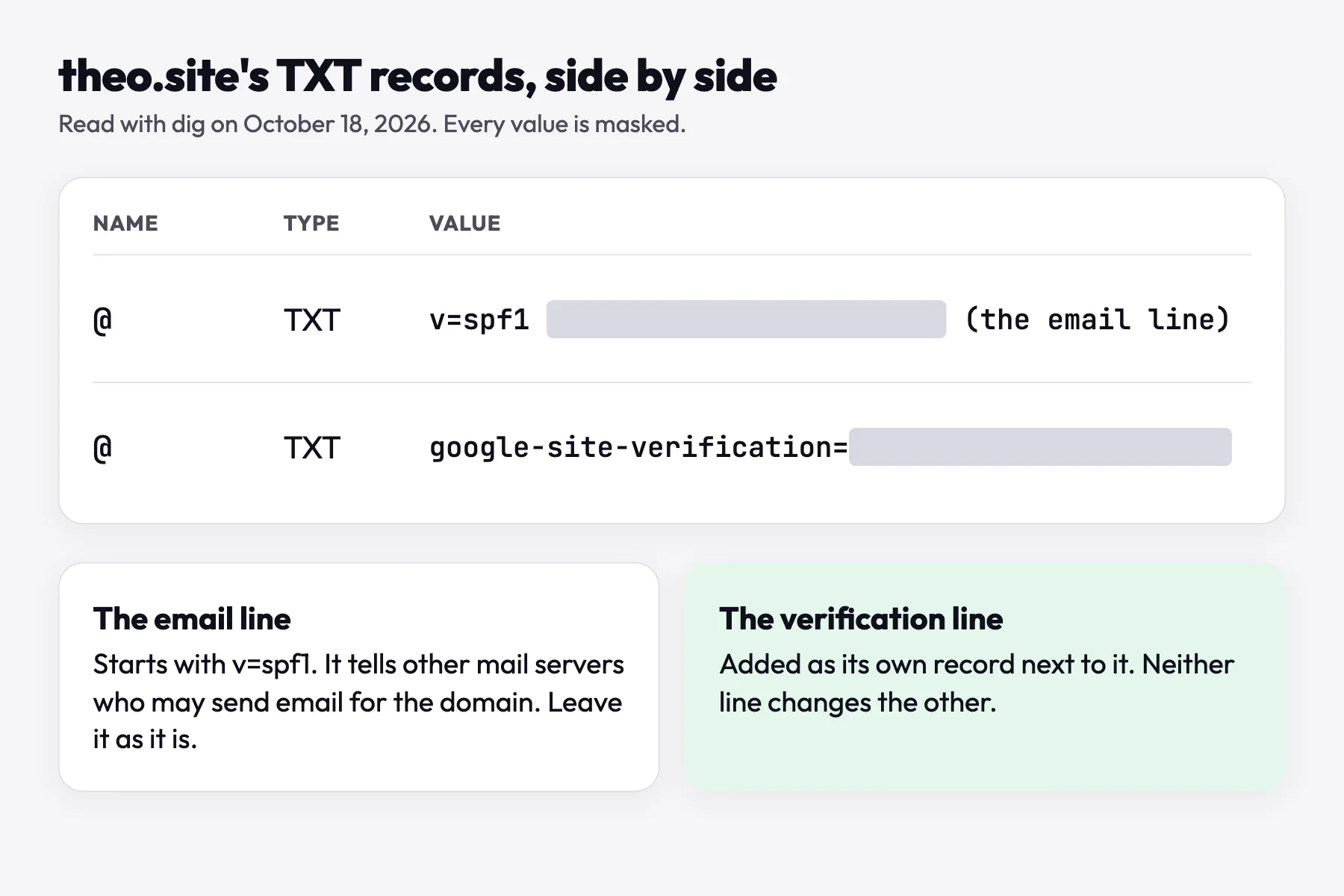
theo.site's own DNS, read with dig on October 18, 2026, holds exactly two TXT records. One is the email line, which starts with v=spf1. The other is theo.site's google-site-verification line. They sit side by side, both named @, and each one does its own job.
There is already a google-site-verification line
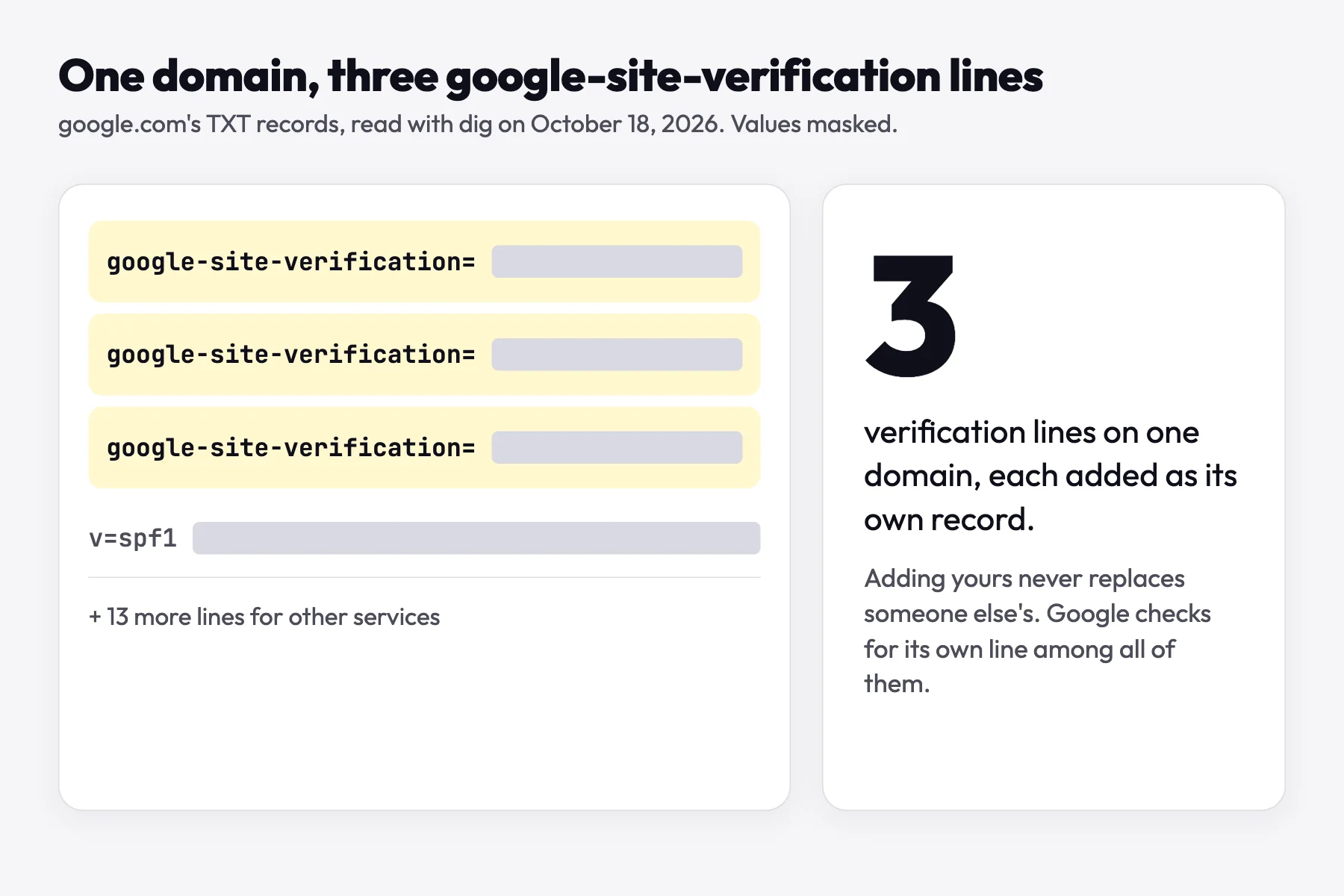
Add yours as a new record anyway, because a domain can carry several. google.com itself had three google-site-verification lines among its 17 TXT records when read with dig on October 18, 2026. Google's help expects this: several people can verify the same site, and it asks only that you "don't overwrite the verification tokens of any other owners."
A line you did not add usually belongs to a former web designer, an old website or a business email setup. Leave it in place unless you know whose it is. If it belongs to a former owner, Google's help says that once you are verified you can unverify them "by removing their verification token," which here means deleting their line. And if you cannot verify yourself, Google suggests you "ask a current owner to grant you access to the property in Search Console."
Step by step at GoDaddy, Squarespace, Cloudflare and other companies
Each row below comes from that company's own help article, read on October 18, 2026, and the sources are listed under the table. Menus move from time to time. If a label differs, look for the same three boxes: type, name and value. A company missing from the table works the same way, with the five steps above.
| Company | Where the records are | Name box | Value box | Worth knowing |
|---|---|---|---|---|
GoDaddy | Domain Portfolio, then the domain, then DNS, then Add New Record | Name: @ | Value | TTL starts at 1 hour. A domain with Domain Protection asks for a code before the record saves. |
Squarespace, including domains first bought from Google Domains | Domains dashboard, then the domain, then DNS, then DNS Settings, then Custom Records, then Add record | Name: @ | Text | Squarespace adds your domain to the Name for you, so type @, never the domain. It asks for your password first. |
Cloudflare | Dashboard, then DNS, then Records, then Add record | Name: @ | Content | Quotes around the line are added for you. If a hosting company added your domain to Cloudflare, add the record through that company instead. |
Hostinger | Hostinger dashboard, then Domains, then DNS, then the domain | Name: @ | TXT Value | The default TTL is four hours, and Hostinger says to allow up to 24 hours for changes. |
WordPress.com | Hosting Dashboard, then Domains, then the domain, then Settings, then DNS records, then Add record | Name: @, or leave it empty | Text | Applies when the domain uses WordPress.com name servers. If you type the full address in Name, WordPress.com removes the domain for you. |
Namecheap | Domain List, then Manage, then Advanced DNS, then Add new record | Host: @ | Value | Leave the domain out of Host, then click Save all changes. Namecheap says new records normally take effect in 30 minutes. |
IONOS | The gear icon next to the domain, then DNS, then Add Record | Host name: @ | Value | IONOS says the record is live there at once and can take up to 1 hour to show elsewhere. |
cPanel hosts, in the Zone Editor | Zone Editor, then Manage next to the domain, then Add Record | Name: the domain with a dot at the end, such as yourbusiness.com. | Record | cPanel adds the domain to a name that does not end in a dot. Its docs say the Record box "will accept invalid data," so paste with care. |
Where each row comes from
Each company's help article, read on October 18, 2026:
- GoDaddy Help, Add a TXT record
- Squarespace Help, Adding TXT records
- Cloudflare docs, Manage DNS records and DNS record types
- Hostinger Help, How to Manage DNS Records at Hostinger, for the menu path
- Hostinger Help, How to manage TXT records at Hostinger, for the boxes and the wait
- WordPress.com Support, Add a new DNS record
- Namecheap Knowledgebase, How do I add TXT/SPF/DKIM/DMARC records for my domain
- IONOS Help, Managing TXT Records
- cPanel docs, Zone Editor
If a sign-in window opens
Search Console can offer your domain company in a list. Google's help says that when it does, you "choose your provider and click Start verification," sign in, and "verification should occur immediately." Theo's Finish verifying button does the same job at the companies that support it: a setup window opens, you sign in to your domain company, and the record is added for you. Either way, only this one record is added, and your website and email stay as they are. Google's help covers the other case too: "If Search Console shows you a domain name provider that isn't yours, choose Any DNS provider from the list."
Closing that window before it finishes saves nothing. Open it again, or add the record by hand with the steps above.
Why Google cannot find your record: the mistakes we see in support
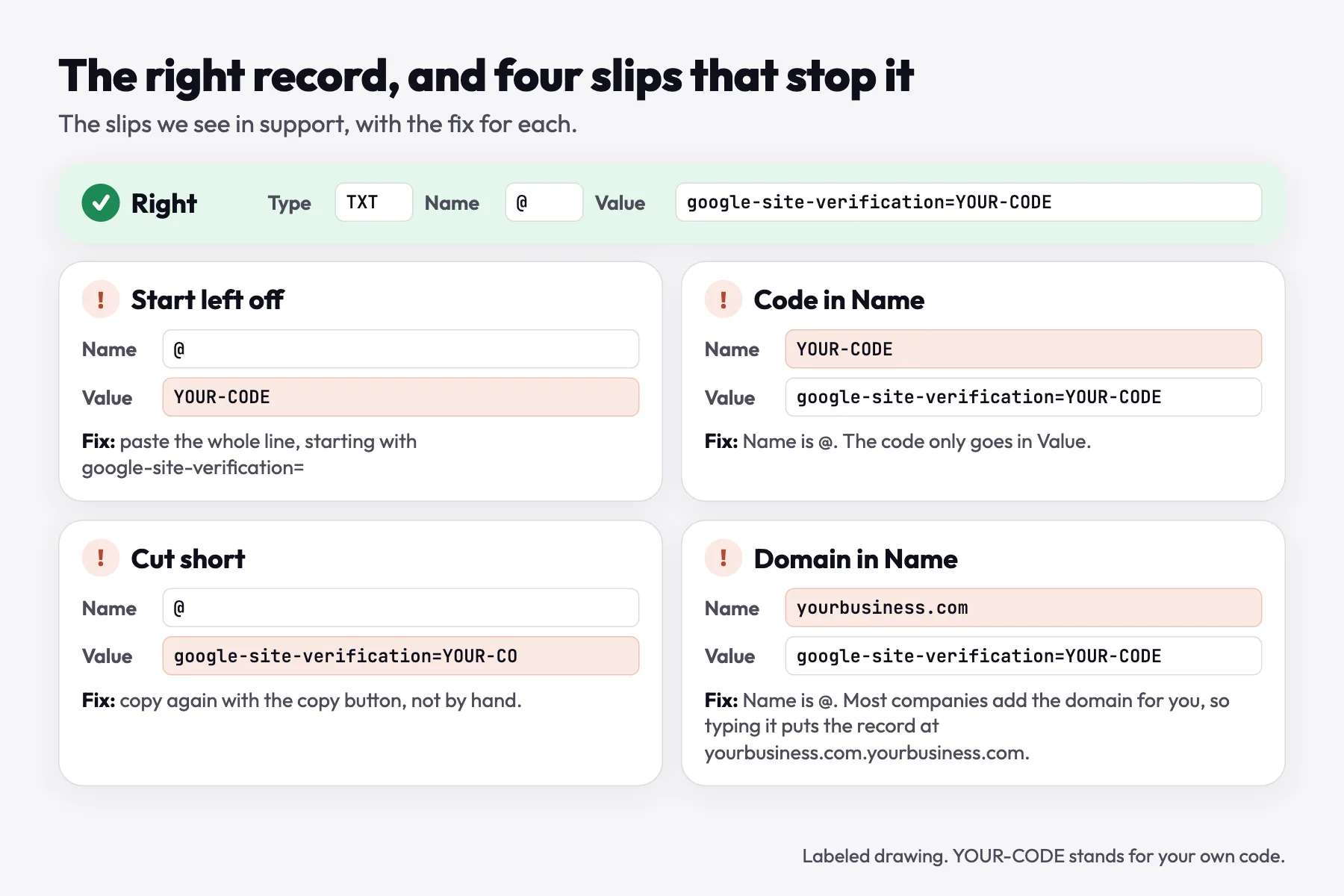
These are the slips Theo's support team sees most with this record, what Google sees in each case, and the fix.
The checker also looks for two slips not traced to a support conversation: the line split in two at the equals sign, with google-site-verification in Name and the code in Value, and the line added on www instead of @.
| What happened | What Google sees | What the checker says | The fix |
|---|---|---|---|
The start was left off, so only the code went into Value | A line without google-site-verification=, so nothing matches | The code is here without google-site-verification= at the start | Edit the record so Value holds the whole line |
The code went into the Name box | A record at YOUR-CODE.yourbusiness.com instead of on the domain | Code in the Name box (paste your line to run this check) | Name @, and the whole line in Value |
The code was cut short while copying | A google-site-verification line that does not match | A shorter copy of your line is here | Copy again with the copy button and replace the Value |
The full domain went into the Name box | A record at yourbusiness.com.yourbusiness.com | Domain typed twice | Change Name to @ |
The sign-in window closed before it finished, or Save was never clicked | No line at all | Not visible yet | Open the window again, or add the record by hand and look for it in the list |
A screen said to allow up to 48 hours, but the record was never saved | No line, however long you wait | Not visible yet, even after the minutes it gives | Add the record, because waiting does not add it |
Why typing your domain in Name doubles it
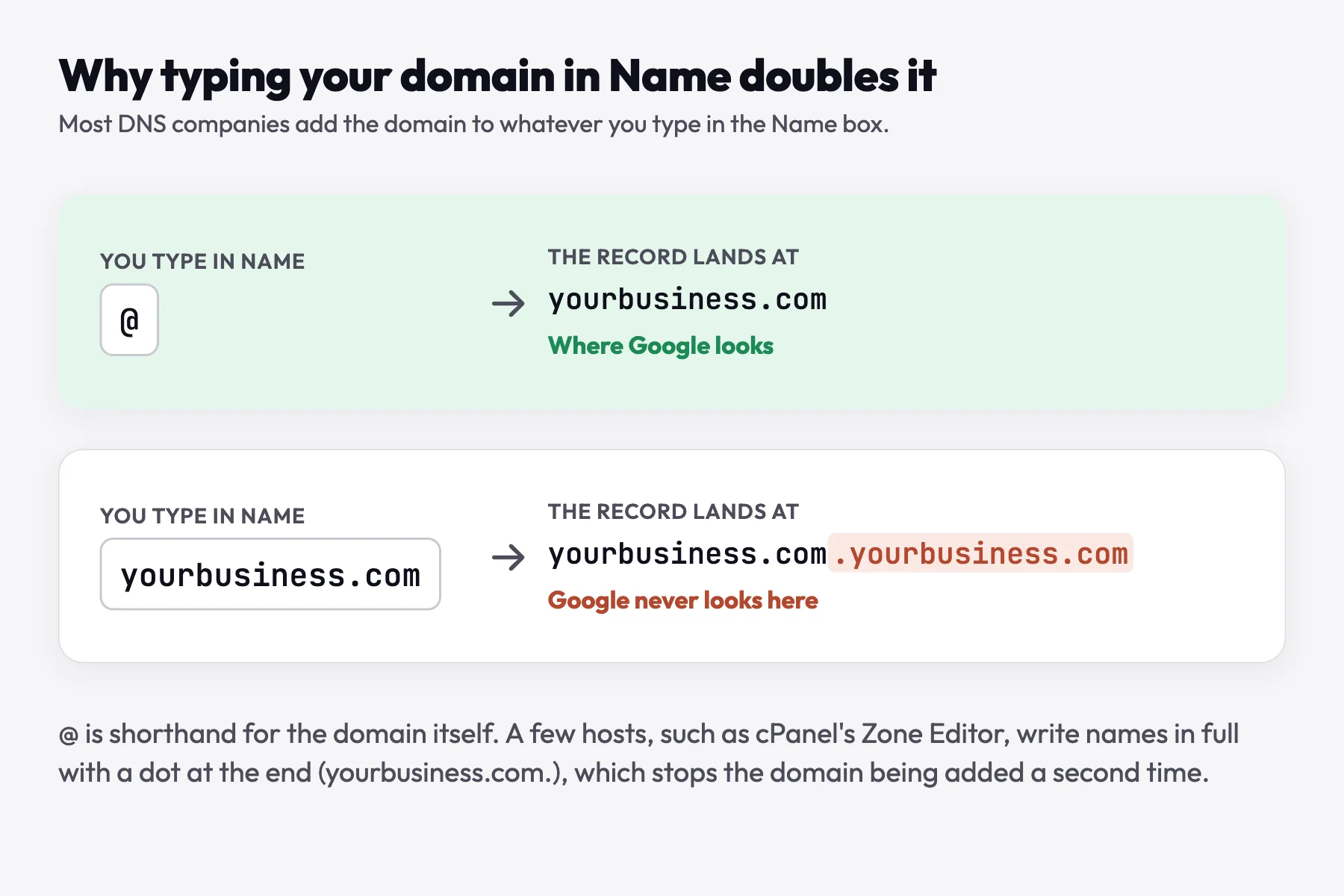
Most DNS companies add your domain to whatever you type in the Name box. Squarespace's help says it "automatically adds your domain to the Name field," and Namecheap's says the domain "should not be included in the Host field." So yourbusiness.com typed into Name becomes yourbusiness.com.yourbusiness.com, a place Google never looks. The @ sign means the domain itself.
Google's two messages, in plain words
Your verification DNS TXT record was not found. Google looked and saw no line for you. Usually the record was not saved, went to a company that does not run your DNS, or was saved only minutes ago. Google's own advice is to wait a day or two, and the checker tells you sooner whether waiting will help.
Your verification record did not match. Google found lines, but none matched the one Search Console gave you. That points to a code cut short, a missing start, a typo, or a line made under a different Google account. Google's fix: "leave the name/host field blank and use your TXT string in the DNS record's value field."
How long Google site verification takes
I think it's done how long does this take 48 hours or less ?
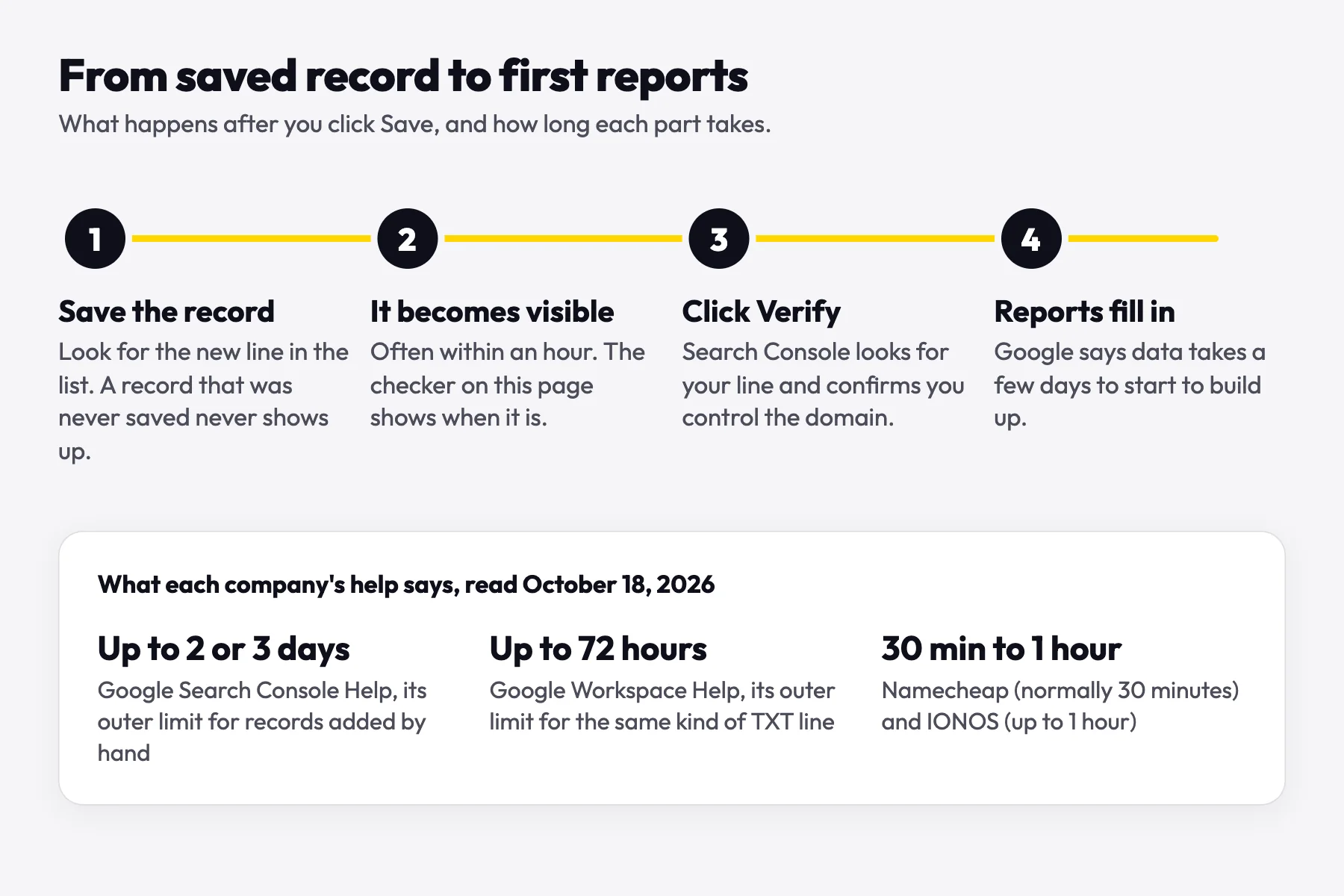
Once the record is saved, it is usually visible within the hour. GoDaddy's help, read on October 19, 2026, says: "Most DNS updates take effect within an hour but could take up to 48 hours to update globally." Namecheap's help says new records normally take 30 minutes, and IONOS's says up to 1 hour.
Google's outer limits are longer. Search Console Help says that for records added by hand, "it can take up to two or three days for your provider to start serving the record." Google Workspace Help gives up to 72 hours for its own check. Those are ceilings, not the usual wait.
The reports take a little longer to fill in. Google says data is gathered for a property "as soon as anyone adds it in Search Console, even before verification occurs," and that it takes "a few days for data to start to accrue."
When waiting will not help
I have attempted this step many times.
The screen that owner was looking at said the DNS was being checked and that it could take up to 48 hours. The record had never been saved, so no amount of waiting would have changed the answer. A waiting screen means Google will keep looking. It does not mean the record is there.
If the checker finds your exact line, click Verify. If it still shows nothing after the suggested wait, look at the record list at the DNS company the checker names. Add the line only if it is missing there; if it is saved correctly, give the provider a little more time to publish it.
After it says verified: keep the record
Keep it or delete it?
A Search Console line: keep it, because Google checks for it again from time to time. A Google Workspace line: Google says it can go once the domain is verified, but keeping it changes nothing. Not sure which one it is? Keep it.
Verification is not a one-time check. Search Console Help says Google "periodically checks if your verification token is still present and valid." If the line disappears, you get a notice first, and access ends only after a grace period.
That is why the two Google help pages seem to disagree. Workspace only needs to see its line once, so that line can go. Search Console keeps checking, so its line stays. The line costs nothing to keep and has no effect on your website or email.
The meta tag and HTML file methods
Search Console can also verify through an HTML tag in the homepage, <meta name="google-site-verification" content="...">, or through a small file uploaded to the site. Both work only for a URL-prefix property, which covers one exact address such as https://www.yourbusiness.com. Google rechecks these too, and its help says removing the file "will cause you to lose verification for the site."
A DNS record (this TXT line, or a CNAME Google offers instead) is the only way to verify a Domain property, which gathers http and https, www and every subdomain in one place. For a small business site, that is the simpler property to live with.
How to verify with the HTML tag in 4 steps
The HTML tag is the method behind the Google site verification box that many website builders have. These steps follow the HTML tag section of Search Console Help, read on October 19, 2026.
- Add a URL-prefix property. In Search Console, choose Add property, pick URL prefix, and type the exact address your homepage opens at, such as https://www.yourbusiness.com.
- Choose HTML tag. On the verification screen, pick HTML tag and copy the tag Google shows.
- Paste it and publish. Builders differ. Some boxes take only the content value, the part between the quotes after content=. Others take the whole tag, starting with <meta. Paste what the box's label or the builder's help asks for. Anywhere without a box, paste the whole tag into the <head> section of your homepage. Then save and publish the site.
- Click Verify in Search Console. Then leave the tag on your homepage, because Google's help says Search Console "will periodically check for the presence of this tag."
Moving to a new website? The DNS line stays with the domain
The verification line lives with the domain, not with the website. Move the site to a new builder or host and the line stays where it is, so Search Console stays verified through the move. A meta tag or HTML file lives on the old site and leaves with it.
One kind of change does take TXT lines with it: moving the domain's nameservers to a new company. That swaps the whole DNS list, so copy every TXT line to the new company first, or add the verification line again afterwards. Connecting a domain to a Theo site changes only the website records, so the verification line and your email lines stay as they are.
For the rest of a move, from old addresses to redirects, see how to redesign a website without losing SEO and what happens to rankings when you move a website.
| How the site was verified | After a move to a new website | After a nameserver change |
|---|---|---|
DNS TXT line | Stays in place | Gone, unless you copy it to the new DNS company |
HTML meta tag | Leaves with the old site | Stays, if the site itself did not change |
HTML file | Leaves with the old site | Stays, if the site itself did not change |
How Theo handles Search Console verification
On every Theo plan, Search Console is part of going live. Once your domain is connected (the domains page covers that step), you click Connect Google and sign in once. Theo first looks for a Search Console property your Google account can already read, from an old website or a past web designer, and uses it. Then no new record is needed.
If there is none, Theo asks Google for the line. It verifies the main domain even when the site sits on a subdomain such as shop.yourbusiness.com, because a main-domain line covers every subdomain. The Analytics panel shows the record as TXT @ with a Finish verifying button. At the domain companies that support it, the button opens a sign-in window that adds only this record. Everywhere else, you add it by hand with the steps above.
Theo keeps checking on its own until Google confirms, then adds the Domain property. If the record still will not verify, Theo support can look at it with you.
Connecting Google also submits your sitemap on every plan, and Google rereads it on its own, so each page you publish is on the list it checks. On Starter and Pro, the Growth Engine adds new pages, posts and fixes every week. Its SEO repair pulls the issues Google Search Console reports, along with a direct check of the site, and fixes them, so the emails Google sends about indexing are taken care of. New pages, posts and page changes wait in the Growth tab for your review unless you turn on auto-publish. A forward from an old address works as soon as Theo adds it. Starter is $69.99 a month, free for the first 30 days, and Pro is $129.99 a month; the pricing page has the details.
To see what a verified property reports, theo.site's own URL Inspection checks are in the guide to Discovered - currently not indexed.
Frequently asked questions
Where do I put the google-site-verification code?
In your domain's DNS settings, at the company that runs them, which is usually where you pay for the domain each year. Add it as a new TXT record with @ as the Name and the whole line as the Value. It does not go on your website or in Search Console itself.
What goes in the Name or Host box?
Type @, or leave the box blank if your domain company says to. Never put the code there, and never your full domain, unless the screen asks for names in full with a dot at the end, as cPanel's Zone Editor does.
Do I paste the whole line or only the part after the equals sign?
The whole line, starting with google-site-verification=. A Value that holds only the code after the equals sign does not match, and it is one of the mistakes we see in support.
How long does Google site verification take?
Once the record is saved it is usually visible within the hour, and you can click Verify then. Google's help gives up to two or three days as the outer limit for records added by hand. If the checker on this page still shows nothing after the minutes it gives, look at the record rather than waiting.
Will adding a TXT record change my website or email?
No. A TXT record holds text and points nowhere, so your website and email keep working exactly as before. Add a new record and leave the existing ones alone, especially the one that starts with v=spf1.
Can I delete the google-site-verification record after it says verified?
Not for Search Console. Google checks for it from time to time, and its help says not to remove it even after verification succeeds. Google Workspace says its own line can go once the domain is verified. If you are not sure which one a line is, keep it, since it costs nothing.
Where do I find my Google site verification code or ID?
While you set up a Domain property, it is the TXT line Search Console shows with a copy button. For a verified property, Google's help says to click the property's name in your list of properties to see its verification methods, then click Details next to DNS TXT record. A website builder's box called Google site verification wants Google's HTML tag instead, which comes from a URL-prefix property. Builders differ: some boxes take only the content value, the part between the quotes after content=, and others take the whole tag, so paste what the box asks for. On a Theo site the line shows in the Analytics panel.
Is this the same as verifying my Google Business Profile?
No. Your Business Profile, the listing on Google Maps, is verified in ways Google picks for each business, such as a call, a text, an email, a video or a postcard, and it never asks for this DNS line. Google's Business Profile help adds that in some cases a profile is verified instantly when its website is verified in Search Console. The video verification guide covers that process.
Search Console, set up for you
On a Theo site you sign in with Google once, and on every plan Theo sets up Search Console, shows you the one record if Google needs it, and submits your sitemap. Starter, at $69.99 a month and free for the first 30 days, adds the weekly pages, posts and fixes. To see how your current site does on Google first, run the free audit.
More like this in the guides and under getting found on Google. The audit numbers quoted across these posts are in Theo's research.