
What the Google business verification video is for
Quick answer
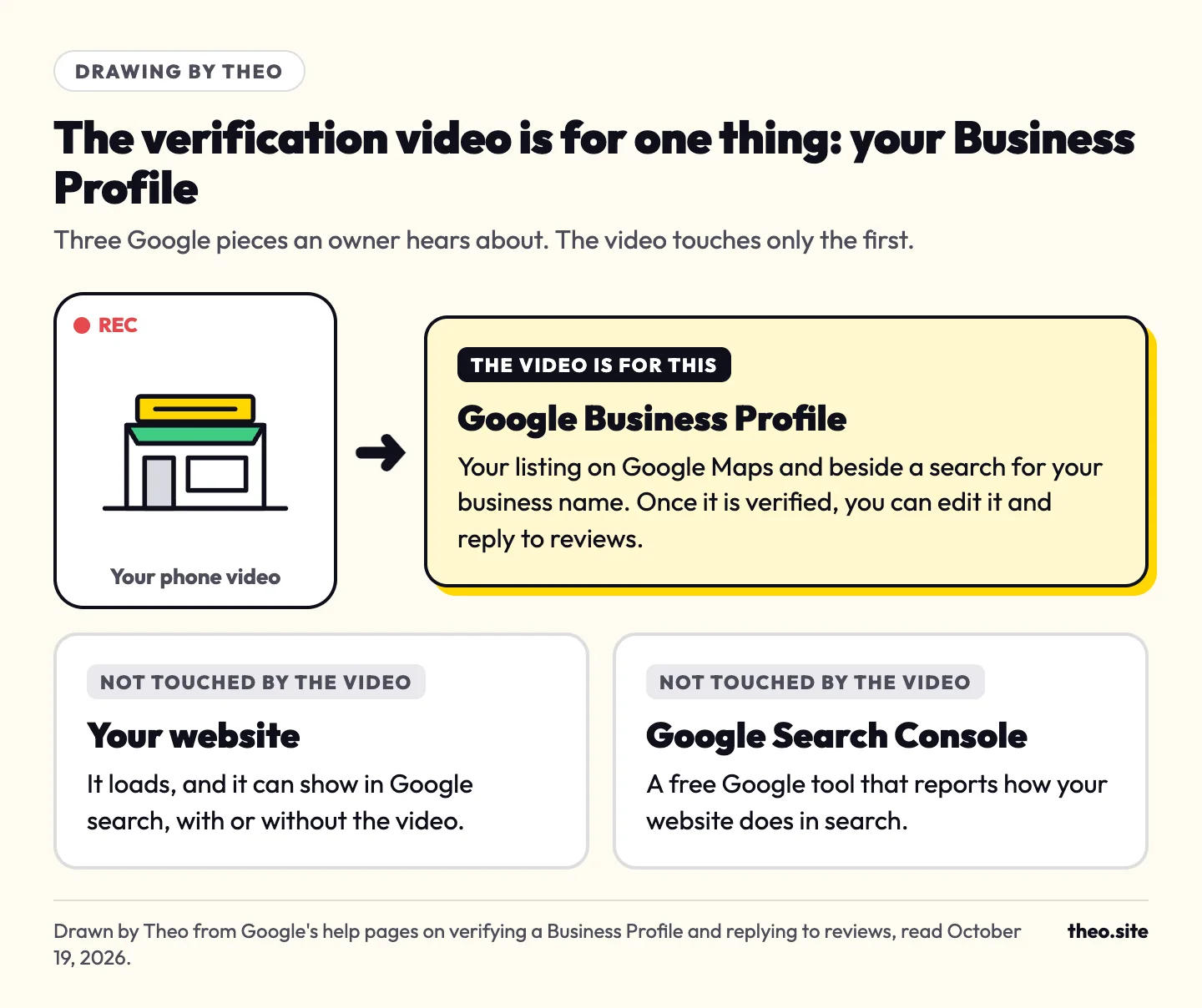
The video is how Google confirms that your business is real and that you are the one running it, so it can give you control of your Business Profile: the listing on Google Maps and beside a search for your business name. Google chooses which verification methods you are offered. When it offers Business video, you film one continuous clip of at least 30 seconds, live, from the Business Profile on your phone, showing where the business is, that it exists and that you run it. Google says the review takes up to 5 business days.
One owner wrote to us that Google wanted a video to prove the location, and asked whether that was really necessary. We answered that the video request is for the Business Profile, the Maps listing, and is separate from the website. Questions about the website itself are covered in the guide to a website not showing up on Google.
The video is still worth making. Google's verification help says that to edit your business info, "such as business name or business hours, and interact with customers, you need to verify your business." Its page on managing customer reviews adds: "Before you can reply to reviews, you must verify your business."
The listing is also a second way to be found. Many small business sites get almost no visits from Google search. In Theo's audit of 6,861 small business websites (August 2 to September 30, 2026), 47 percent of the 4,633 sites with search data got an estimated zero visitors a month from Google search (Semrush estimates). The figures are in The State of Small Business Websites 2026.
Jump to your situation: I have a shop or office, I work from a van or a yard, I run it from home with no sign, or Google asked me to review issues.
Before you press record: five checks that save a second take
Check these five before you tap Get verified.
- The business type on the profile. Storefront, service-area or hybrid decides what Google wants to see. Pick your kind of business below if you are not sure which one fits.
- The exact name. Google says the name in the video must match the name on your Business Profile. Look at what the camera will see (the sign, the van, the business card, the invoice) and make the profile name read the same, word for word.
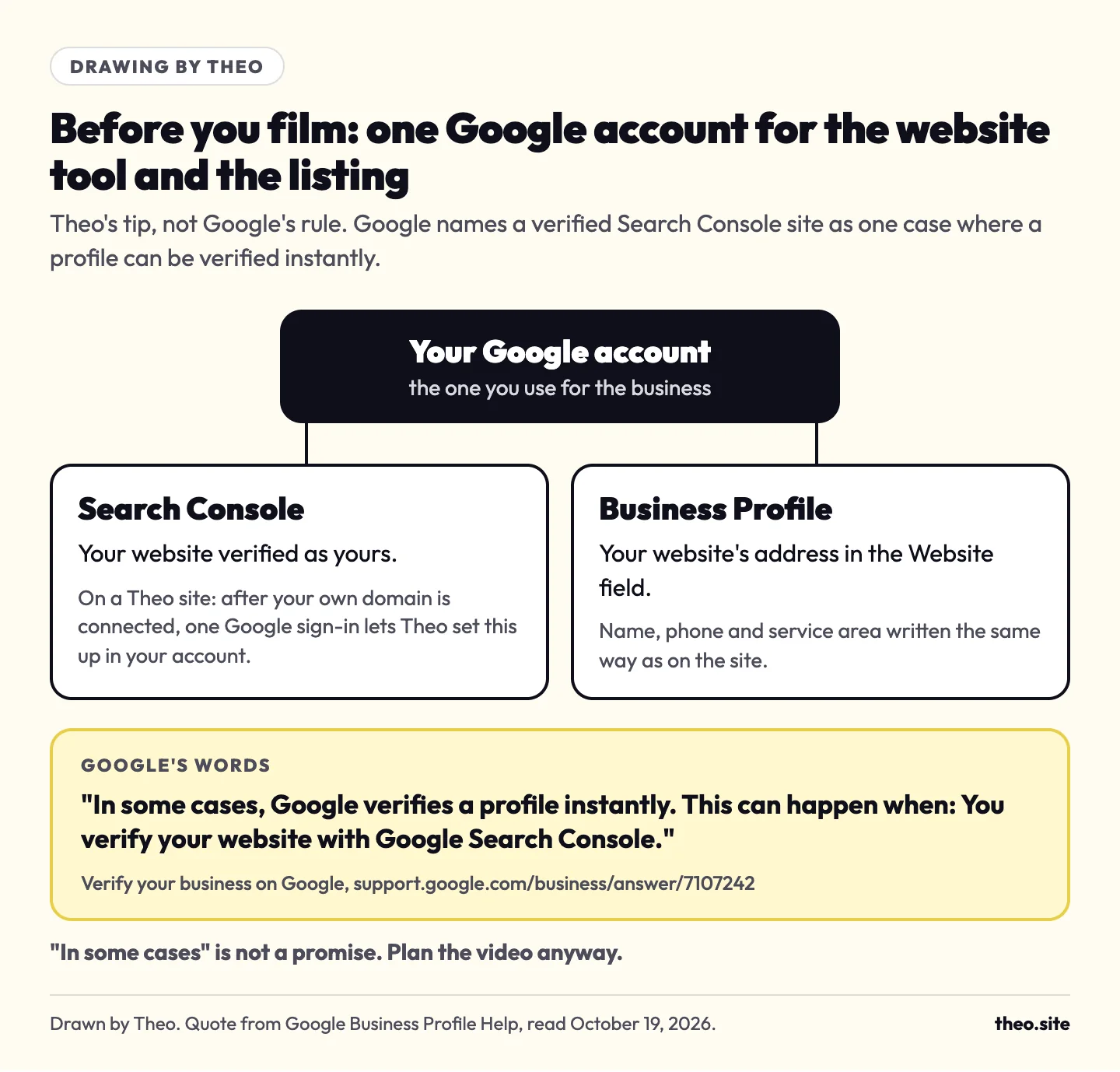
- Your website in Google Search Console. Google's verification help says: "In some cases, Google verifies a profile instantly. This can happen when: You verify your website with Google Search Console." Use one Google account for both the profile and Search Console (our tip). "In some cases" is not a promise, so plan the video anyway. To set up Search Console yourself, see where the google-site-verification record goes. On a Theo site, once your domain is active, you click Connect Google and sign in once, and Theo sets up Search Console in your own Google account, or uses a property you already have.
- The phone. Charge it and free up some storage. Daylight helps signs and street names read clearly. Turn on precise location for the app you record in (our tip). On an iPhone, open Settings, then Apps, then Google (or whichever app you record in), then Location, and pick While Using the App with Precise Location on. On Android, the same choice is under Settings, then Location, then App location permissions (App permissions on some phones).
- The route. Walk it once without recording, or rehearse it in your camera app. Have the keys you need in your hand before you start. Put away anything that shows a customer's name or an account number. In a shared building, ask the property manager before you film the lobby (our tip).
Google's rules for the video, in plain words
Google's video verification help sets these rules for every kind of business. The left column is Google's wording; the right is what it means on camera.
| Google's rule | What it means when you film |
|---|---|
You "must capture the footage live as pre-recorded videos aren't allowed, and you can't record it offline and upload it later." | Record inside the Business Profile on your phone, not in your camera app. A clip you shot last week cannot be used. |
"An unedited, unique, and complete recording with no breaks." | One take from start to finish. You cannot pause to walk to the van, so plan a route you can cover on foot without stopping. |
"At least 30 seconds long." | That is Google's only length rule. The shot lists below give a pace that fits all three proofs. |
"Recorded and uploaded from a mobile device through your Business Profile." | Use a phone or tablet. If you started on a computer, switch to the phone for the recording. |
Must not include "sensitive info like bank account, tax, or ID numbers." | Cover or skip anything with an account number, a tax ID or a driver's license number. A permit or invoice is fine with those parts covered. |
Must not include "private info about you or others." | Cover customer names, addresses and account numbers on invoices, bills and screens. Never film client files or an appointment book. |
Must not include "other people's faces." | Film when it is quiet, or point the camera away from customers and staff. For a service-area business, a uniform still counts, since Google lists "branded apparel worn by employees or customers": film the shirt, not the face. |
Which video do you film? Pick your kind of business
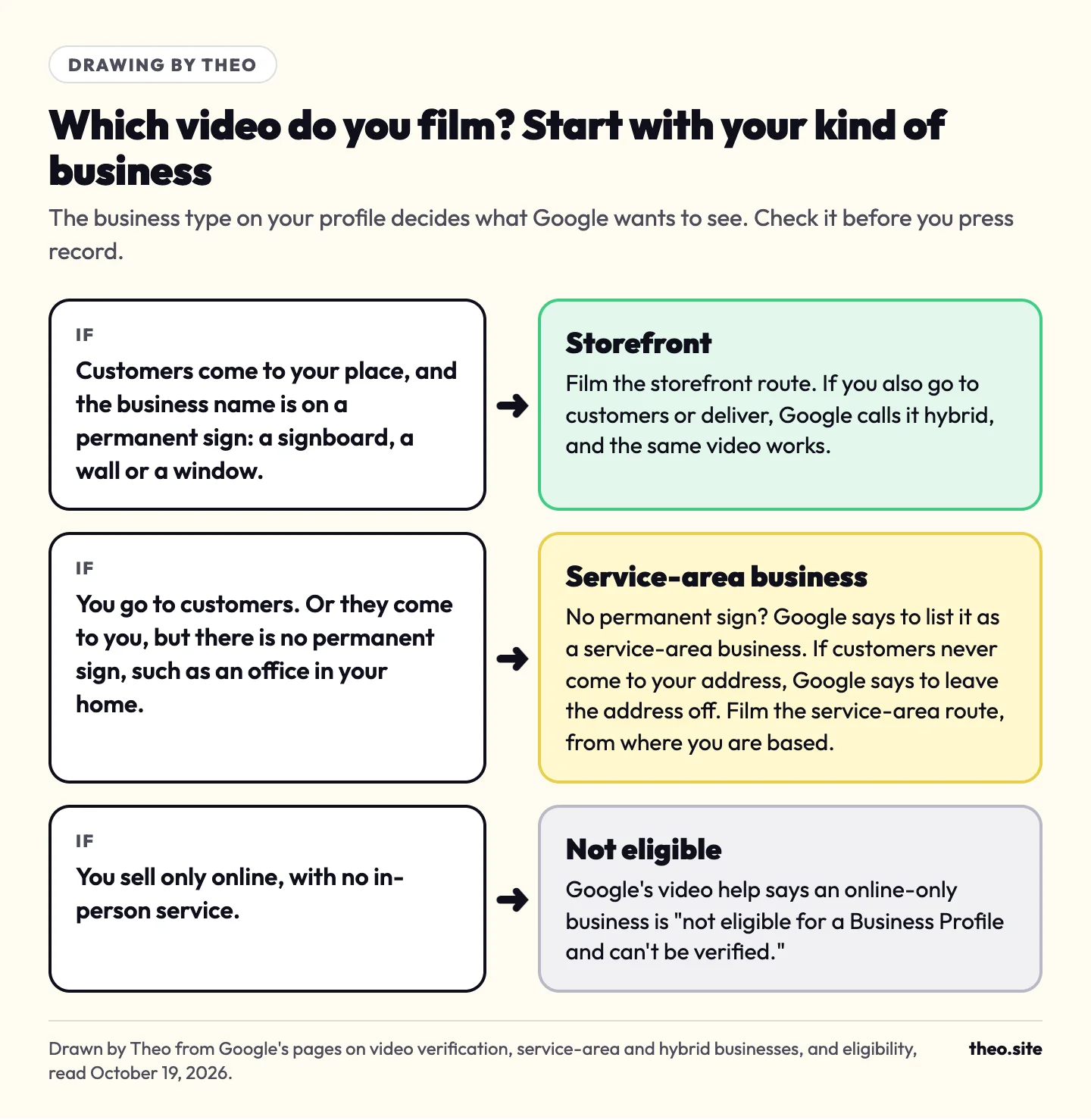
Google sorts every profile into one of three types, and the type decides what the video must show. These definitions come from the video help and Google's page on service-area and hybrid businesses.
- Storefront: a business that "interacts with customers in-person during business hours at a physical location with permanent on-site signage."
- Service-area business: one that "goes to customers or offers services but doesn't serve them at its business address," such as a locksmith or a plumber. Google says: "If you don't serve customers at your business location, do not add your business address to your Business Profile."
- Hybrid: a business that "serves customers at its location and also visits or delivers to them," like a dine-in restaurant that also delivers. A hybrid business films the storefront video.
| Your business | Google's type | Proof of where it is | Proof it exists | Proof you run it |
|---|---|---|---|---|
Shop, salon, restaurant, office or clinic with your name on a permanent sign | Storefront, or hybrid if you also go out or deliver | Street signs, building numbers, nearby businesses or familiar places | The storefront, showroom or sign, with the name on a permanent fixture | Something only an employee can access: the cash register, kitchen, storage room or point-of-sale system |
A trade that works at customers' homes or job sites, from a shop, yard or office | Service-area | Street signs, nearby landmarks or other markers at your business address | Professional tools, equipment or products, your workspace, business cards, branded apparel | Doing the work, unlocking a branded van, or a business permit, invoice or utility bill in the business name |
A service run from your home, with no sign | Service-area | Landmarks and signs in your immediate neighborhood | The tools, products and workspace you use, business cards, branded apparel | Doing the work, or a business permit, invoice or utility bill in the business name |
Two cases that trip people up
Clients visit your home office, but there is no permanent sign. Google's video help says: "If your business doesn't have permanent on-site signage, list it as a service-area business instead of storefront." Film the home-based route below.
You sell only online. Google's video help is direct: "If your business operates online-only, like e-commerce shops with a virtual storefront, and doesn't offer any in-person services, you're not eligible for a Business Profile and can't be verified." Google's eligibility guidelines add that a business must "make in-person contact with customers during its stated hours."
Shot lists, second by second
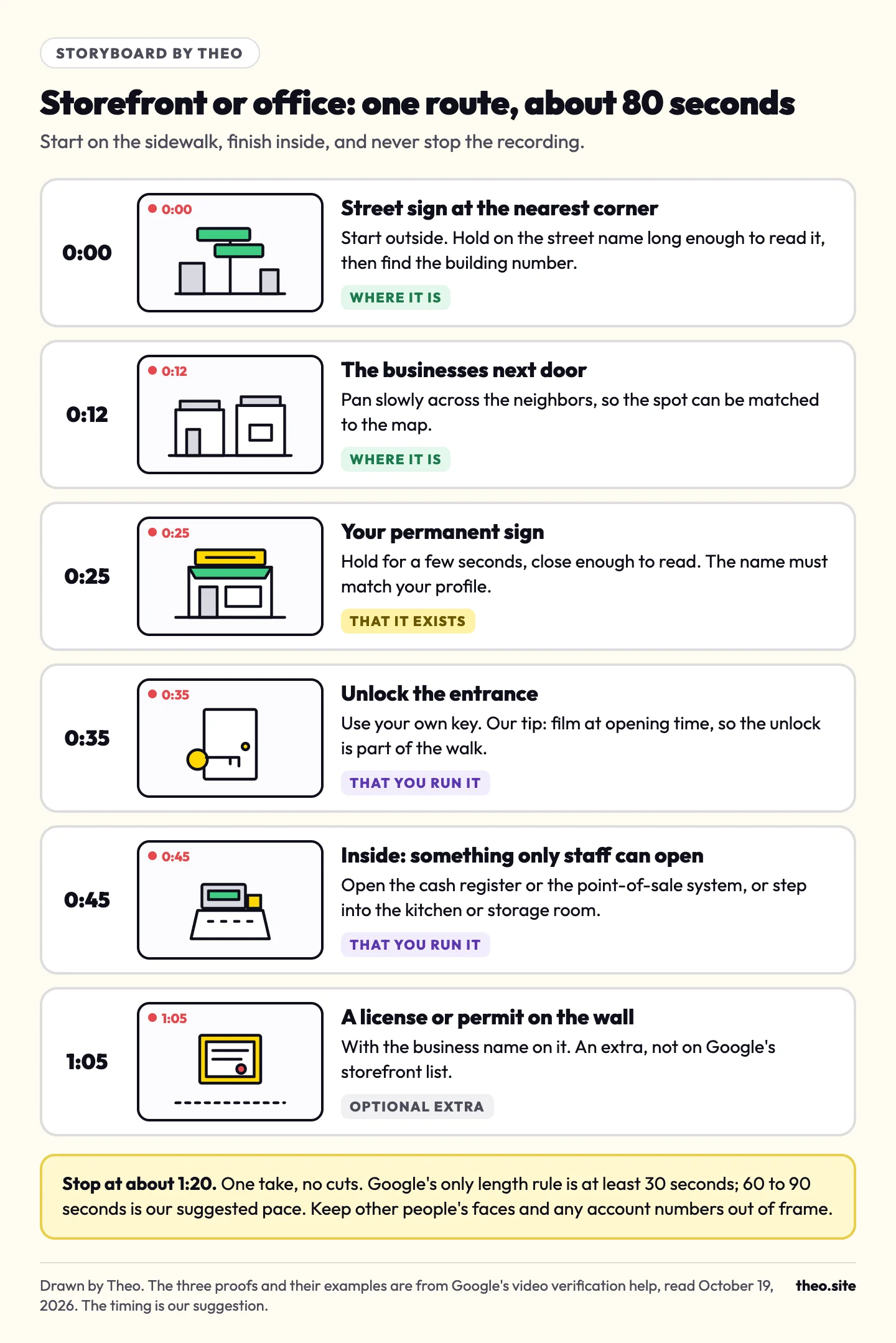
Each route covers Google's three proofs in one walk, in 70 to 80 seconds. Google's only rule on length is at least 30 seconds, so the timing is our suggested pace. Anything marked (our tip) in this guide is Theo's advice, not Google's rule.
Storefront or office: start outside, finish at something only staff can open
Start on the sidewalk and finish inside. In an office building, film the lobby directory on the way in (our tip), then the name on your own door or window. Google's words for where the name goes are "a signboard, wall, or window."
- 0:00 Outside, film the street sign at the nearest corner, then the building number.
- 0:12 Pan slowly across the businesses next door.
- 0:25 Hold on your permanent sign for a few seconds, close enough to read.
- 0:35 Unlock the entrance with your own key and walk in (our tip). Google's live video call help says: "You can also use your keys to open your facility."
- 0:45 Inside, show something only an employee can access. Google's examples: "opening a cash register, kitchen, storage room, or using a point-of-sale system."
- 1:05 Optional extra: a business license or permit on the wall with the business name. It is not on Google's storefront list.
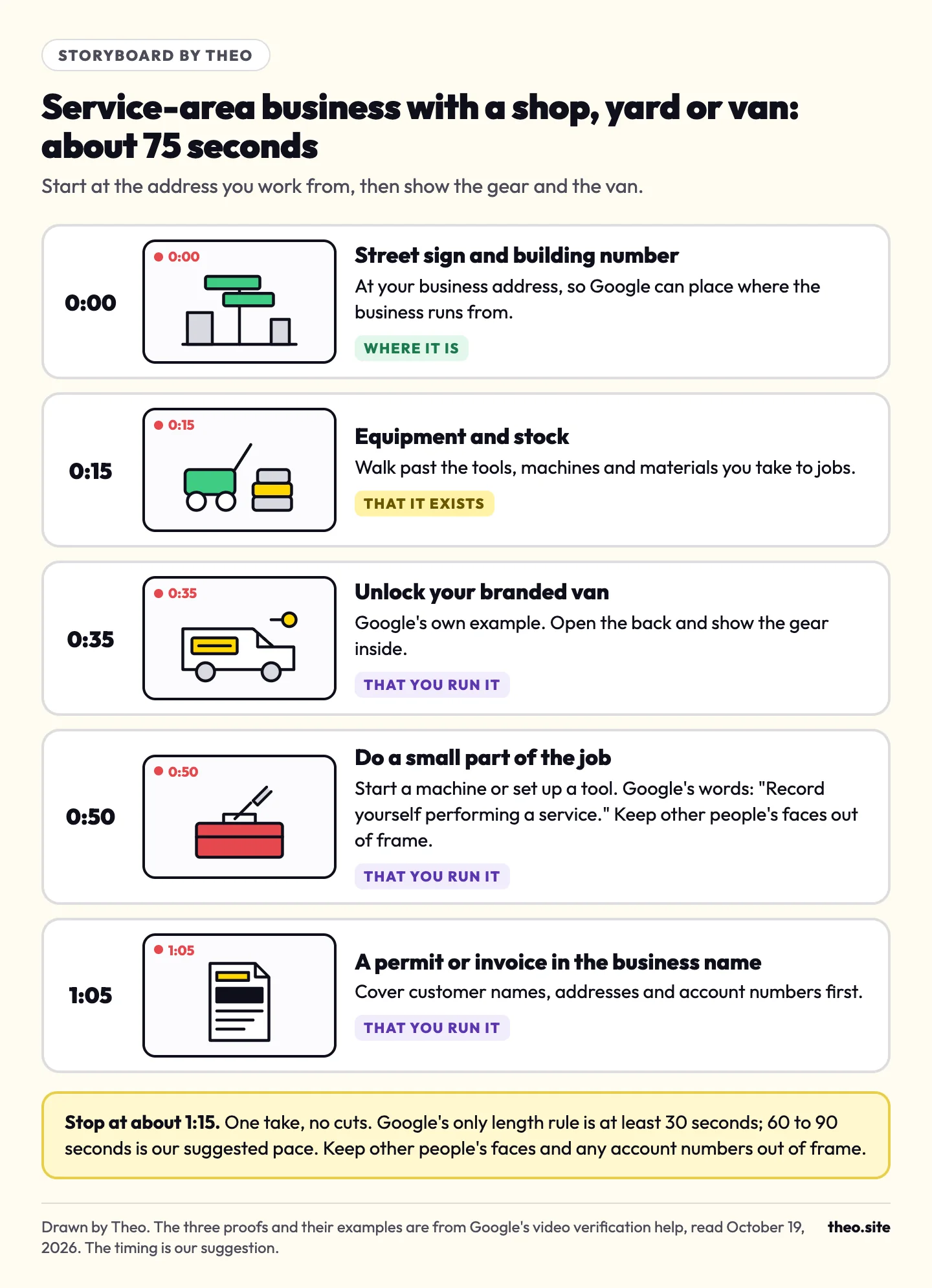
Service-area business with a shop, yard or van
- 0:00 At your business address, film the street sign and the building number. Google asks for "street signs, nearby landmarks, or other identifiers" and says to avoid "empty land or locations without clear markers."
- 0:15 Walk past the tools, machines and materials you take to jobs.
- 0:35 Unlock your branded van and open the back. Google's own example of a business-only asset is "unlocking a van that has your business branding."
- 0:50 Do a small part of the job: start a machine or set up a tool. Google's words are "Record yourself performing a service."
- 1:05 Show a business permit, invoice or utility bill in the business name, with customer names, addresses and account numbers covered.
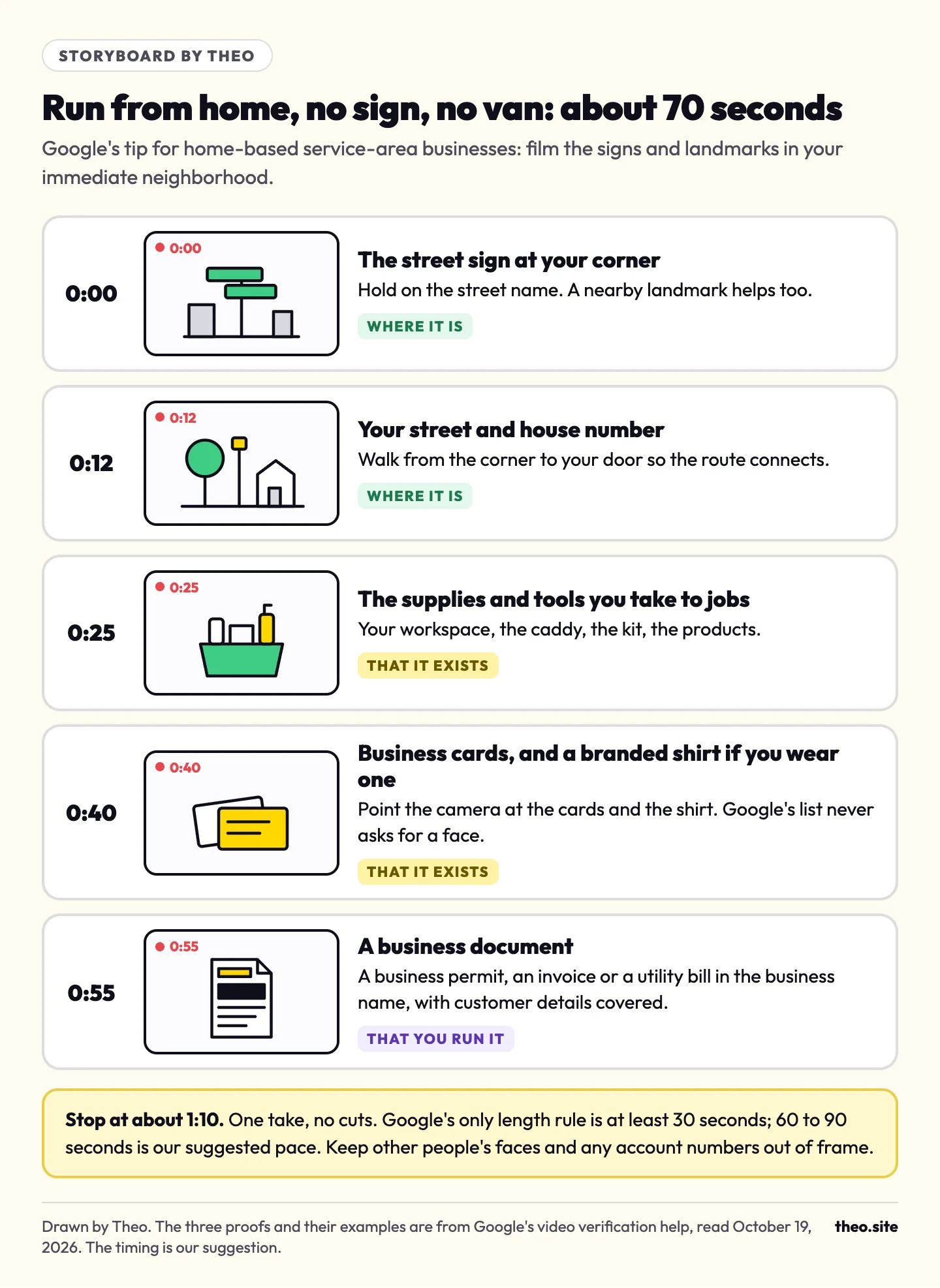
Service-area business run from home, with no sign
- 0:00 Film the street sign at your corner. Google's tip for a service-area business run from home: "you can record landmarks and signs in your immediate neighborhood to verify the address."
- 0:12 Walk to your street name and house number, so the route connects.
- 0:25 Show your workspace and the supplies, tools or products you take to jobs.
- 0:40 Show your business cards, and a branded shirt if you wear one.
- 0:55 Finish on a business permit, invoice or utility bill in the business name, with customer details covered.
Swaps by trade: what to film, and what to keep private
Here is how Google's examples translate by trade. Google rules out "sensitive info like bank account, tax, or ID numbers" and "private info about you or others," so the last column matters as much as the others.
| Business | Proof it exists | Proof you run it | Keep out of frame |
|---|---|---|---|
Plumber, electrician or HVAC company | Fittings, wire or duct stock, meters and hand tools, the shelving in the van | Unlock the branded van, film yourself starting a small task, or show a trade license or permit in the business name | Customer names and addresses on work orders and invoices |
Landscaper or lawn care | Mowers, trimmers, the trailer and materials at the yard | Unlock the branded truck or trailer, start a mower, or show an invoice in the business name | Customer addresses on the route sheet |
House cleaner | The supply caddy, vacuum and products you bring, business cards, a branded shirt if you wear one | An invoice, business permit or utility bill in the business name, with client names and addresses covered | Clients' homes, keys and names |
Contractor or remodeler | Saws, tools and materials in the shop or truck | Unlock the branded truck, or show a permit or invoice in the business name | Homeowner names and addresses on permits and plans |
Bakery, cafe or restaurant | The permanent sign, the counter or dining room | Open the register or point-of-sale system, or walk into the kitchen or storage room | Customers' faces and a card reader in the middle of a sale |
Therapist, accountant or lawyer in an office | The lobby directory (our tip) and the name on your door or window | Walk into a staff-only area, such as the storage room | Client files, appointment books and any screen with a client's name |
Mobile vet or pet groomer | The equipped van, the grooming table or the exam kit | Unlock the branded van and show the equipment set up, or a permit or invoice in the business name | Pet owners' names, addresses and records |
Run from home with no sign and no work van: what to show instead
A common worry: a home baker, a solo cleaner or a bookkeeper with no sign, plain tools and the family car. Google's own FAQ answers it: "You can still show the place where you provide services, the tools you use, and documents associated with your business." Here is what to film in place of what you do not have, using only Google's examples.
| If you don't have | Show this instead | Where it comes from |
|---|---|---|
A street sign right outside | Your street name and building number, or signs and landmarks in your immediate neighborhood | Google's FAQ and its tip for businesses run from home |
A branded van or truck | The tools you use, your workspace, business cards or branded apparel | Google's list for service-area businesses |
A shop to unlock | Yourself doing part of the work, or a business permit, invoice or utility bill that matches the profile name | Google's list for service-area businesses |
Anything with the business name on it | Get one first: order business cards or send an invoice in the business name, then film | Our tip, built on Google's "documents that show your business name" |
If the video still is not accepted
Google's help says: "If you still encounter issues, you can try another available verification method." The other methods are listed below; some businesses are offered a live video call. After that, Business Profile support is the next step. Google asks owners to try the methods shown first, because "this makes it easier for us to provide assistance."
Recording and uploading, tap by tap
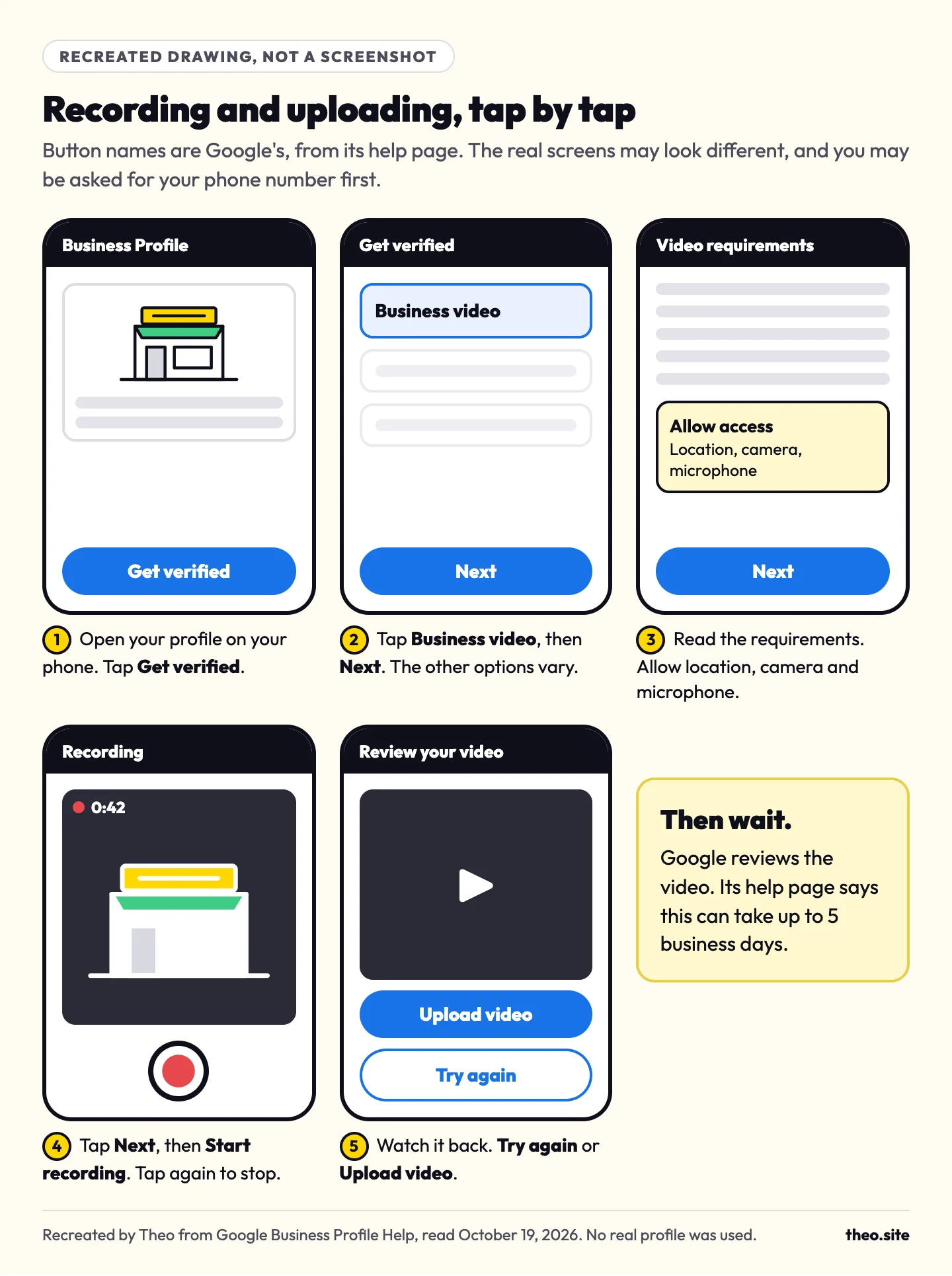
These steps are from Google's video help and, for the first step, its verification help, read on October 19, 2026. The screens on your phone may look a little different.
- On your phone, sign in to the Google account that manages the profile, then search Google for my business, or your business name and city, to open your Business Profile. If you have not created or claimed it yet, Google's page on adding or claiming a Business Profile starts there.
- Tap Get verified. You may be asked to enter your phone number and tap Next.
- Tap Business video, then Next.
- Read the video requirements, and check them against the list for your kind of business above.
- If asked, allow access to your location, camera and microphone.
- Tap Next, then Start recording. Tap the record button to start, and again to stop.
- Watch the video back to check that it shows everything. Tap Try again to record it again, or Upload video to send it.
If the upload stalls
Google's answer is short: "In some cases, videos fail to upload on the first try. Upload it again." Upload over a strong Wi-Fi connection (our tip).
After you upload: the wait, and what each result looks like
Google says the review can take up to 5 business days, and "on rare occasions, reviews may take longer." This table pairs each result with its next step, using Google's verification help.
| What you see | What it means | What to do |
|---|---|---|
Nothing yet | Google is still reviewing the video | Wait, and leave the name, address and category as they are. |
A confirmation email | "When your business is verified, you'll get a confirmation email." | Fill in hours, photos and your website, then start asking for reviews with a review link. The guide to answering a bad review covers the replies. |
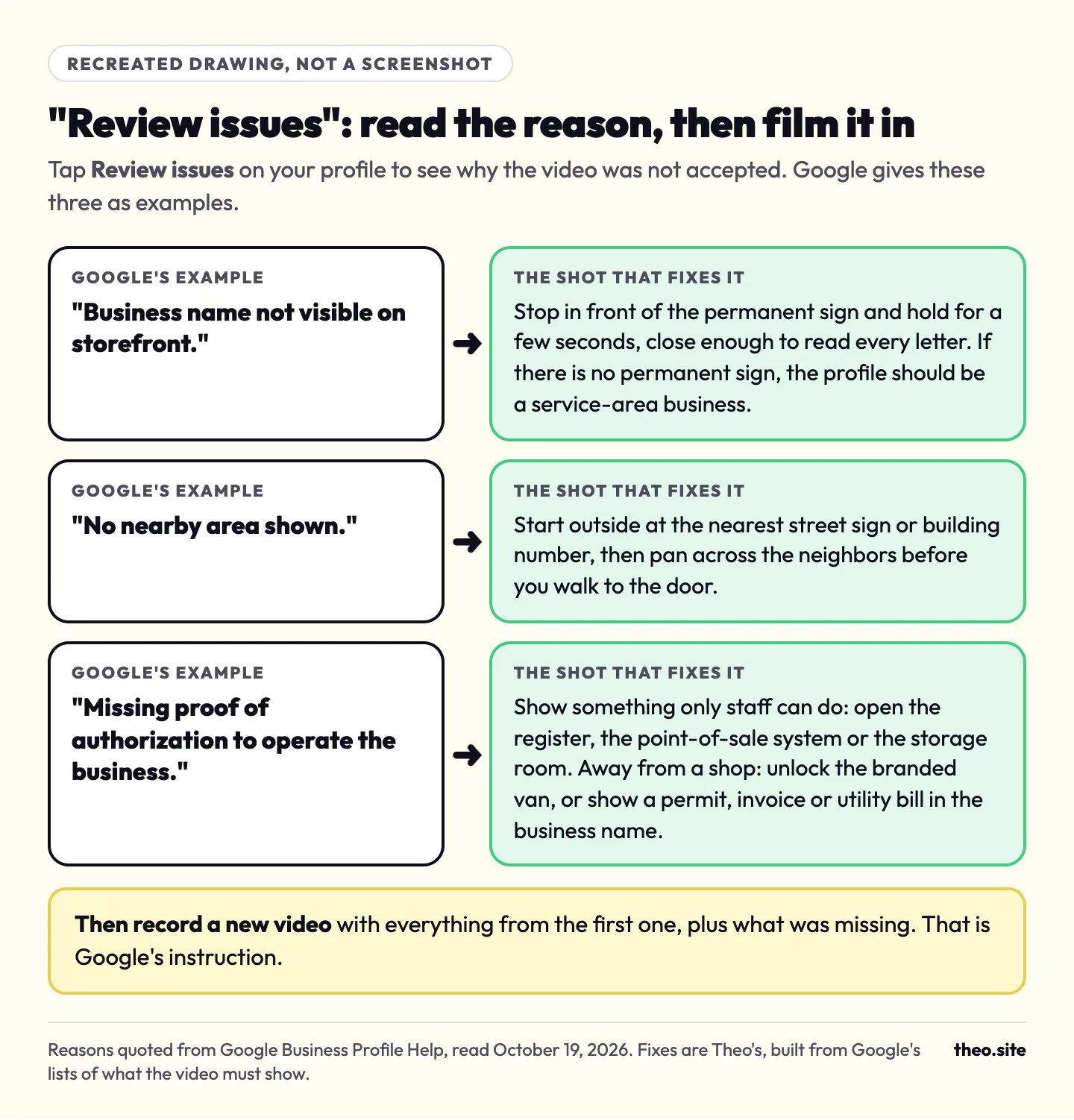
A Review issues notice | Google says it means "your video wasn't accepted" | Tap Review issues, read the reasons, and record a new video with everything from the first one plus what was missing. |
The Get verified button is back | Google "couldn't completely verify your business" | Verify again, or try another method if the profile shows one. |
A request for more info | Google says it is likely "because some of your business details were recently updated" | Tap Get Verified and follow the steps shown. |
Why Google can ask you to verify again
Google's video help says: "To keep your business info accurate, changes to your business info may require re-verification." If Google asks you to verify again, its instruction is to "follow the same steps shown in your profile." The strict rule against edits belongs to the postcard method, where an edit means "the code we sent you won't work."
An email that reads "A recent information edit was rejected" is a different thing. It means Google turned down one edit; it is not a request to verify again. In the case one owner forwarded to us, the refused edit was a name change, and an appeal to Google settled it. Business Profile support is the place to ask about a refused edit.
Common mix-ups, checked against Google's help
Each of these can cost a second take. Every row is checked against Google's help, read on October 19, 2026.
| Common belief | What Google's help says | What to do |
|---|---|---|
The video should show staff at work, or you introducing yourself | The video must not include "other people's faces." Google's list never asks for a face. | Film the work and the tools instead. |
Video verification is a live call with a Google representative | These are two methods: a recorded business video, and a live video call that "may not be available for all businesses." | Check which one your profile offers before you plan anything. |
A printed banner or a temporary sign is fine | The name must be "clearly printed on a permanent fixture, like a signboard, wall, or window." | No permanent sign? List the business as service-area and film that route. |
A plain van means you will not pass | A branded van is one example. Google also lists tools, equipment, your workspace, business cards, branded apparel and business documents. | Use what you have. The swaps by trade above show the options. |
The postcard is gone | Google still lists mail, noting that it "isn't available for all businesses." | If Postcard is offered, it is a real option. |
Other ways Google may let you verify
Google's rule is plain: "Verification methods are automatically determined by Google and can't be changed." The options "depend on your business type, public info, region, or business hours." Google adds that "in some cases, you may need to verify your business with more than one method," so a request for a video can follow a phone code or a postcard. It also says: "If your business is eligible for video verification, we recommend that you use this option." Here is each method, from Google's verification help. Step 8 of the guide to getting your website on Google shows where the profile fits in the bigger picture.
| Method | How it works | Good to know |
|---|---|---|
Phone or text | Google calls or texts a code to the business number, and you enter it on the profile. | Google says an automated phone menu (IVR) won't get the code, so pick up yourself. |
Email | You follow the steps in an email sent to the address shown on the verification screen. | Use it only if you can open that inbox. |
Business video | The recorded video this guide covers. | Google's recommended option when you are eligible. |
Live video call | A support representative joins a video call, and you show your location and that you manage the business. | Not offered to every business, and only during your business hours. |
Postcard | A code arrives by mail, and you enter it on the profile. | Most codes arrive within 14 days and expire after 30 days. While you wait, don't change the business name, address or category, and don't request a new code. |
Instant | No code or video; in some cases, Google verifies the profile right away. | Google names two cases: a website verified in Google Search Console, and bulk verification. |
How the profile and your website work together, and where Theo helps
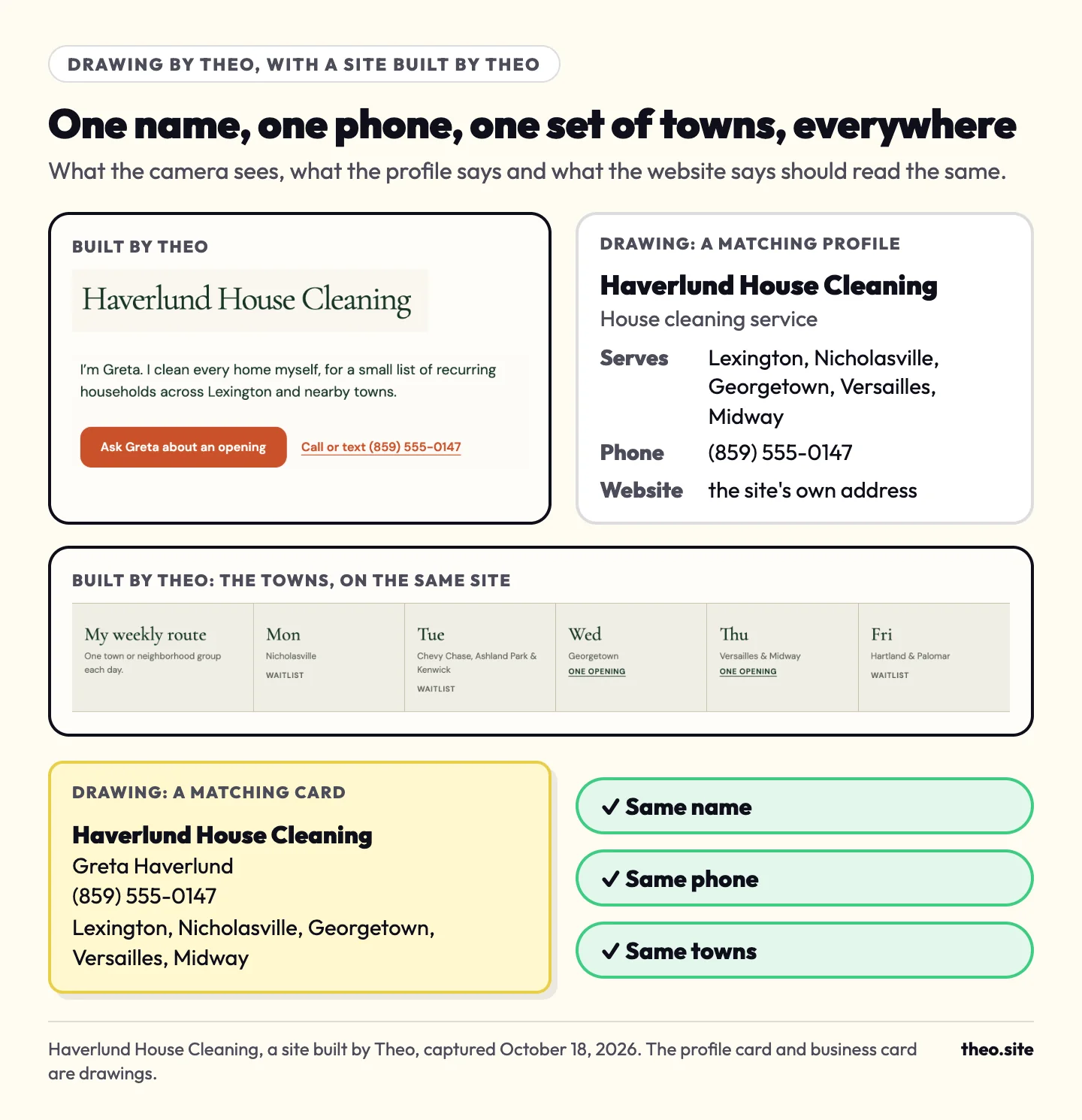
The profile links to the website, and both describe the same business, so they should agree. Google's guidelines say a profile's phone number and website should be "the single, authoritative phone number and website for the business." Write the business name, the phone number and the towns you serve the same way on the website, on the profile and on anything the camera will see. The website launch checklist has the rest of the details to line up.
On every Theo plan, the Connect Google step from the checks above sets up Search Console, and connecting Google also submits your sitemap. Google rereads it on its own, so each page you publish is on the list it checks. Starter and Pro add the Boost checklist, which walks you through the Google Business Profile and the other big listings one at a time, in your own accounts, plus the weekly pages, posts and fixes on the website. Starter is $69.99 a month, free for the first 30 days, and Pro is $129.99 a month. See how the search work runs or every plan.
Frequently asked questions
Do I have to verify my Google Business Profile with a video?
Only if video is the method Google offers you. Google says verification methods "are automatically determined by Google and can't be changed." If your profile shows other options, such as phone or text, email or a postcard, you can pick one of those. Google adds that "in some cases, you may need to verify your business with more than one method," so a video request can still follow. A website verified in Google Search Console is one case where Google says it can verify a profile instantly.
Is the Business Profile video the reason people can't find my website?
No. The video is only for the Business Profile, your listing on Google Maps. Whether your website loads and whether it shows in search are separate questions, and the guide to a website not showing up on Google walks through them.
How long does Google Business Profile video verification take?
Google says reviews take up to 5 business days, and on rare occasions longer. While you wait, leave the business name, address and category as they are.
How long should the verification video be?
Google's rule is at least 30 seconds, in one unbroken take. Our suggested pace is 60 to 90 seconds, enough to show where the business is, that it exists and that you run it.
I work from home. Will Google show my home address?
Not if customers never come to your address. Google says that if you don't serve customers at your business location, you should not add the address to your Business Profile; you list the areas you serve instead. If clients come to your address and you also go out to them, Google says to enter both your address and your service area; without a permanent sign there, Google says to list the business as a service-area business. For the video, Google suggests recording landmarks and signs in your immediate neighborhood.
What happens to my verification video afterward?
Google says you can delete it anytime. On your phone, open your Business Profile, tap More, then Business Profile settings, then Advanced settings, and under Video uploads tap Delete videos. If you don't, Google will delete it later. If you cancel the upload, neither you nor Google can access the video.
What if my video is not accepted?
Open your Business Profile and tap Review issues. Google shows the reasons, such as "No nearby area shown." Film that in, keep everything you showed the first time, and upload the new video. If it still does not go through, try another method your profile shows, then Business Profile support.
Do I need a Gmail address for a Business Profile?
No. You need a Google Account, and Google says you can create one with a Gmail address or your preferred email address, such as your business email.
How do I know if my Google Business Profile is verified?
Google sends a confirmation email when the business is verified. If the Get verified button appears on your profile again, Google couldn't completely verify your business; verify again, or use another method if your profile shows one.
When you want the website handled too
The listing is yours to verify, and Theo takes care of the website around it. On Starter, the Boost checklist guides you through the listings and the weekly search work runs on the site, for $69.99 a month, free for the first 30 days. The free audit shows how your current site does on Google today.
More like this in the guides and under getting found on Google. The audit numbers quoted across these posts are in Theo's research.